
Use the link in a newsletter
The goal is to send a newsletter where every contact receives a personalized link. The avatar can then read the first name from the link. Use this flow:- Create an email in your newsletter tool.
- Decide which variable you need in the avatar flow. For Christmas greetings, this is the recipient’s first name.
- Find the merge tag your newsletter tool uses for first names.
- Add the avatar link to the newsletter, for example through a button.
- Replace
recipientName=Raijawith your newsletter tool’s merge tag.
recipientName={{first_name}}
-
Change the sender’s name the same way as you changed the recipient’s name. So modify the “&senderName=Michael” part of the URL. Note: if you want to write something like “the Humanizing Team”, replace the blank spaces with
%20(here:the%20Humanizing%20Team). - That’s it. You should be good to go. But try to send a test newsletter first to make sure that your email tool adapts the link in the right way.
#ATTRI/senderName with the sender name from the link and speaks it exactly as you pass it.
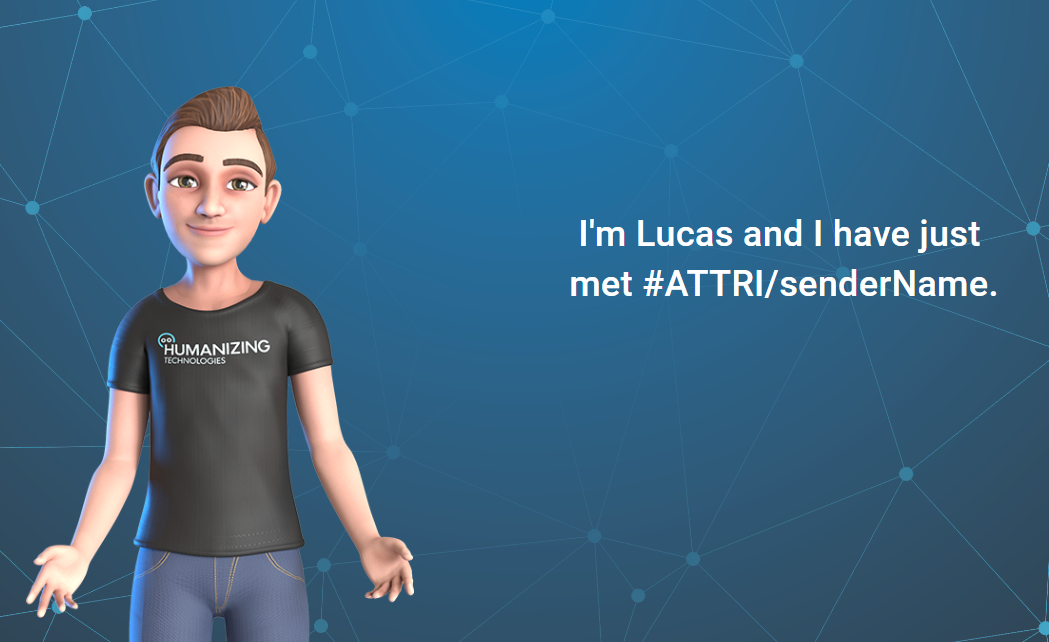 So it makes more sense to write “the Humanizing Team” instead of “Humanizing Team”.