
Adding the QR-Code-Scanner Plugin
To use the QR-Code-Scanner plugin in your project, follow these simple steps:- Drag and drop a “Custom Plugin” element into your project workspace.
- Use this URL: https://gh-qrscan.plural-plugins.com/
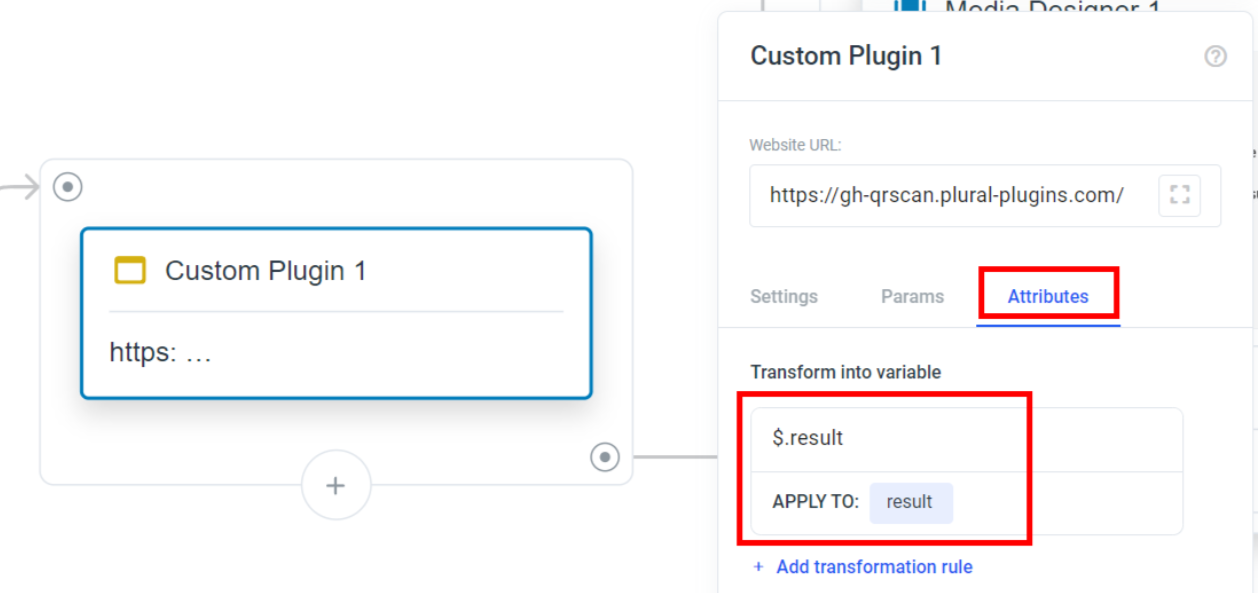
- In “Attributes” set the variable JSON key path to $.result and save it to the variable that you want to save the content of the QR-Code into.
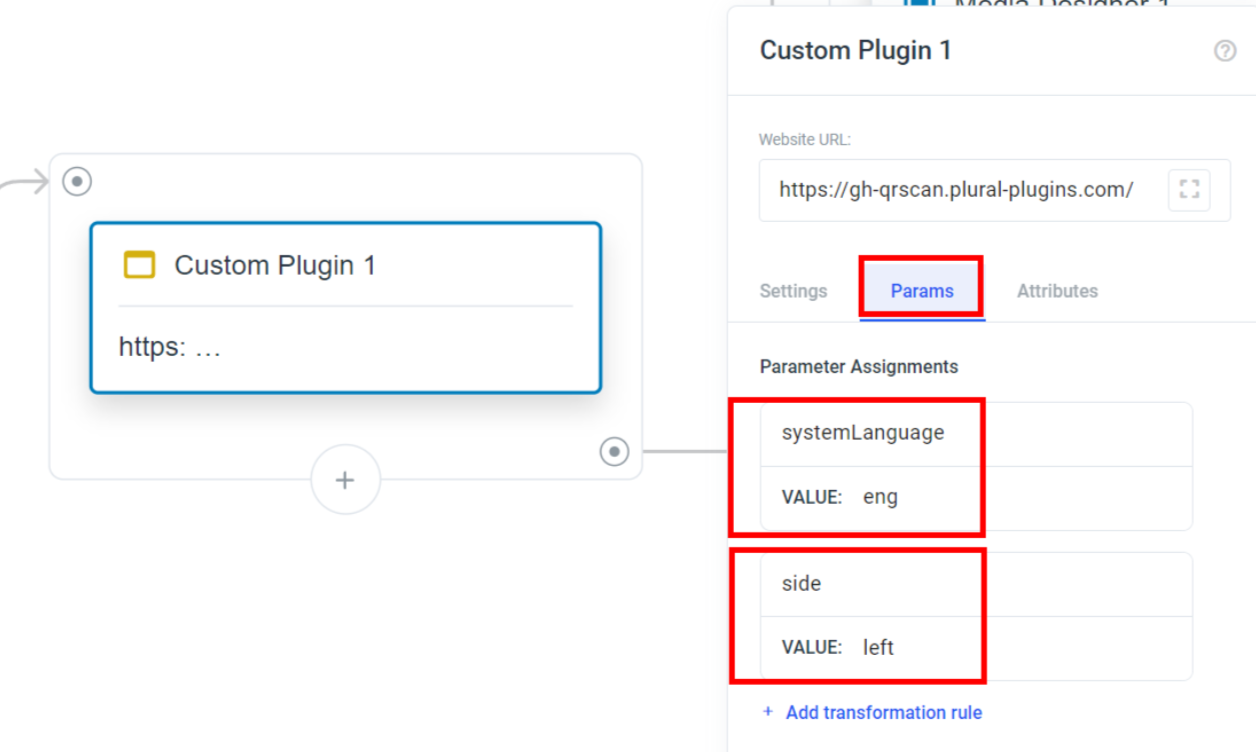
- Configure the QR-Code-Scanner Plugin by setting the following parameters:
-
systemLanguage(Default:ger): Specify the system language as “eng” for English or “ger” for German. You can also use the shortcode#ATTRI/LanguageISO2to automatically detect the system language. If no value is provided, the plugin will default to German (ger). -
side(Default:right): Choose the side where the QR-Code Scanner is located, either “left” or “right.” If no value is provided, the plugin will default to the scanner being located on the right side (right).
 Save the changes and proceed to design your project.
Using the QR-Code-Scanner Plugin
The QR-Code-Scanner plugin makes it easy to scan QR codes and collect the scanned data. Follow these steps to use the plugin effectively:- Open the flow.
- Scan the QR-Code at the hardware scanner.
-
Once the user successfully scans the QR code, the plugin will retrieve the scanned data and make it available in the
$.resultvariable.