
Add your Website to your Project
Add the Show Website Element by drag and drop the output of the previous element. Select Show Webite from the Menu, which appears when you drop the output. In the sidebar you will see an input field where you can enter the URL (link to your website) of your website. Your website must communicate via HTTPS. HTTP is not supported. Your browser will tell you whether your website communicates in encrypted form (via HTTPS): 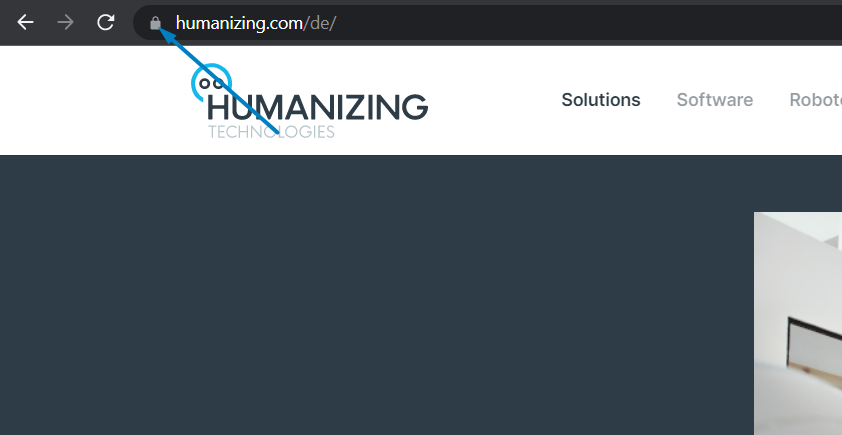
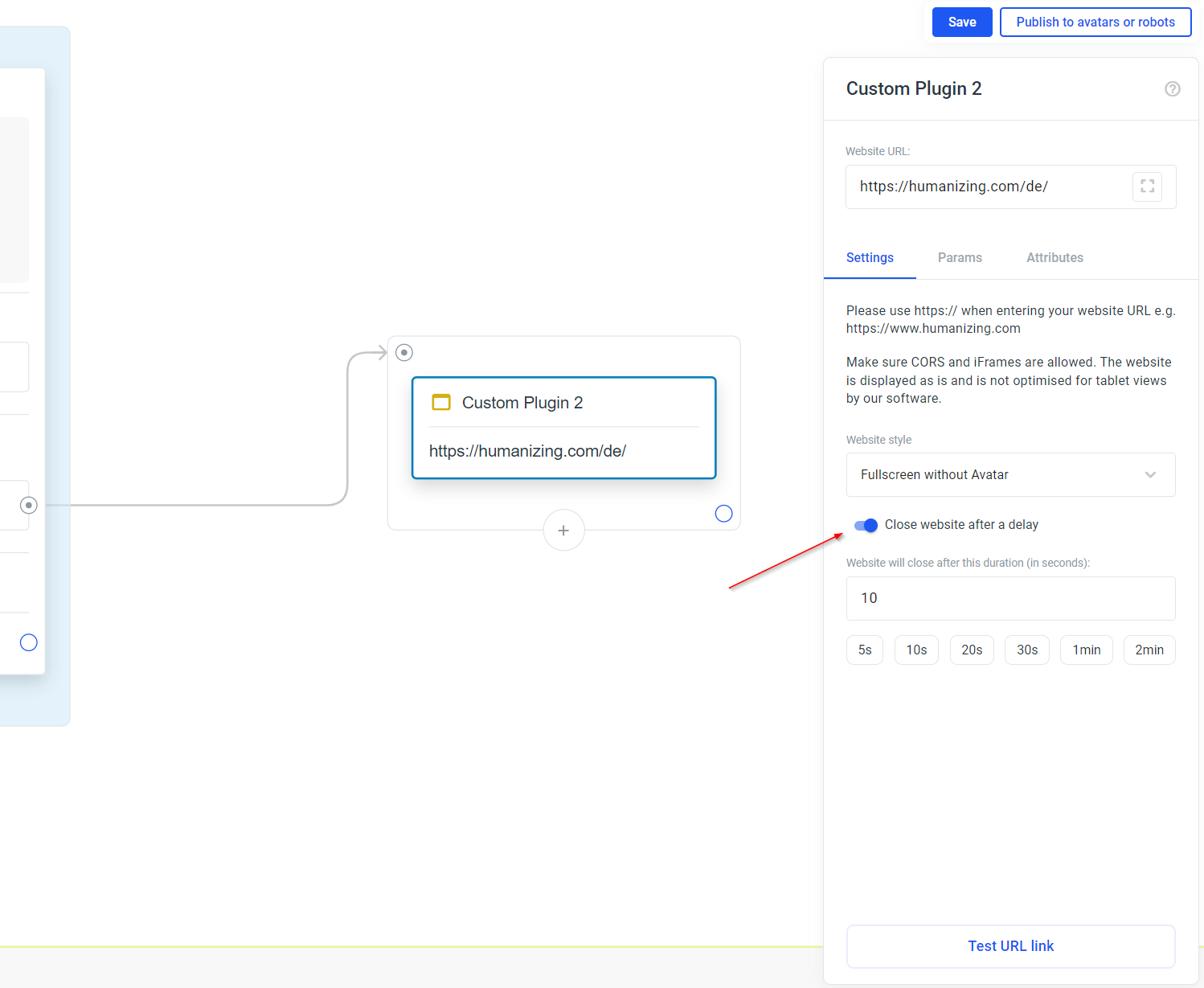
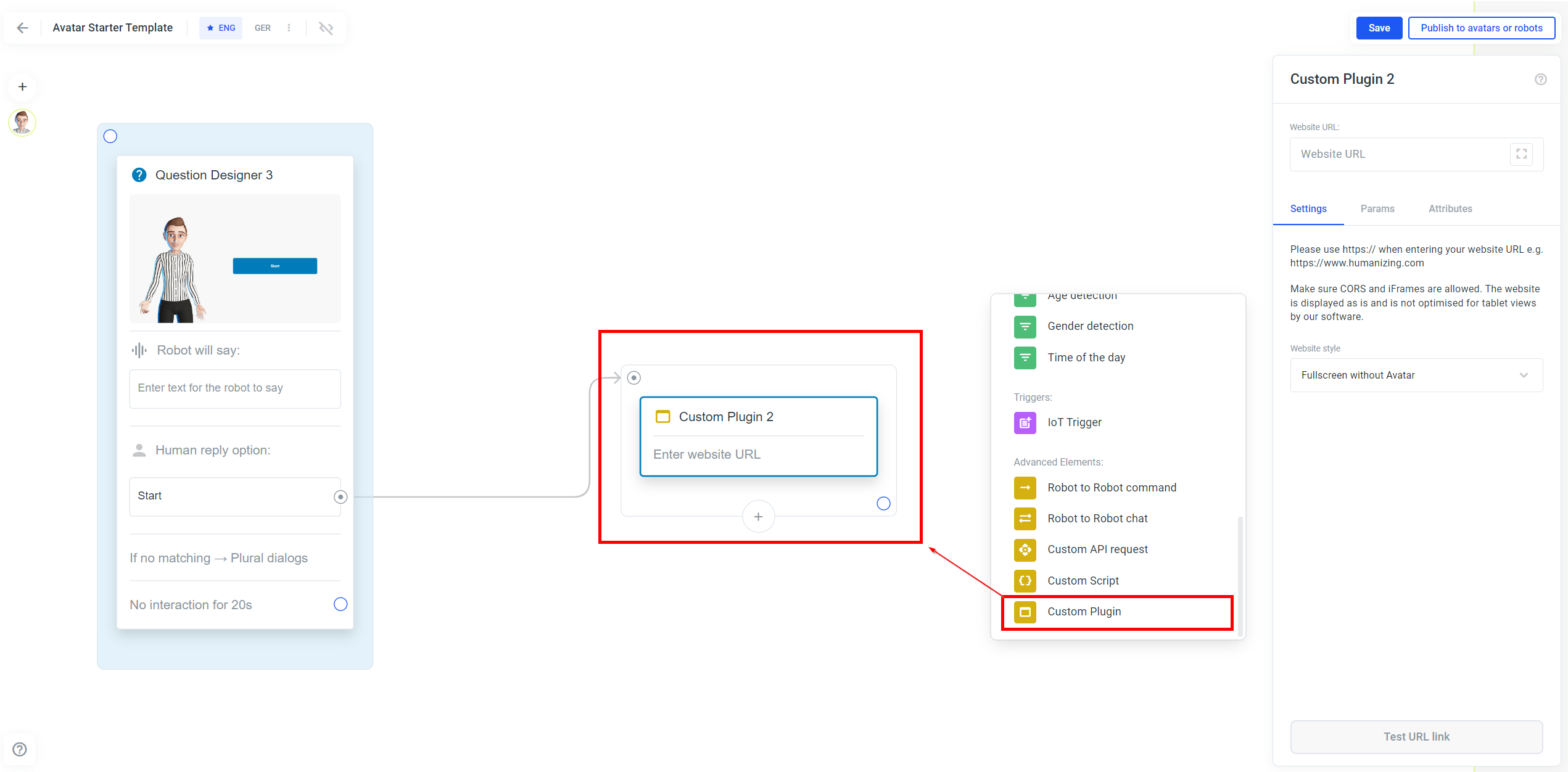 Activate the switch and select a time when the website should be closed automatically:
The User will always have the option to close the Website with a small x button in the upper right corner.
Activate the switch and select a time when the website should be closed automatically:
The User will always have the option to close the Website with a small x button in the upper right corner.
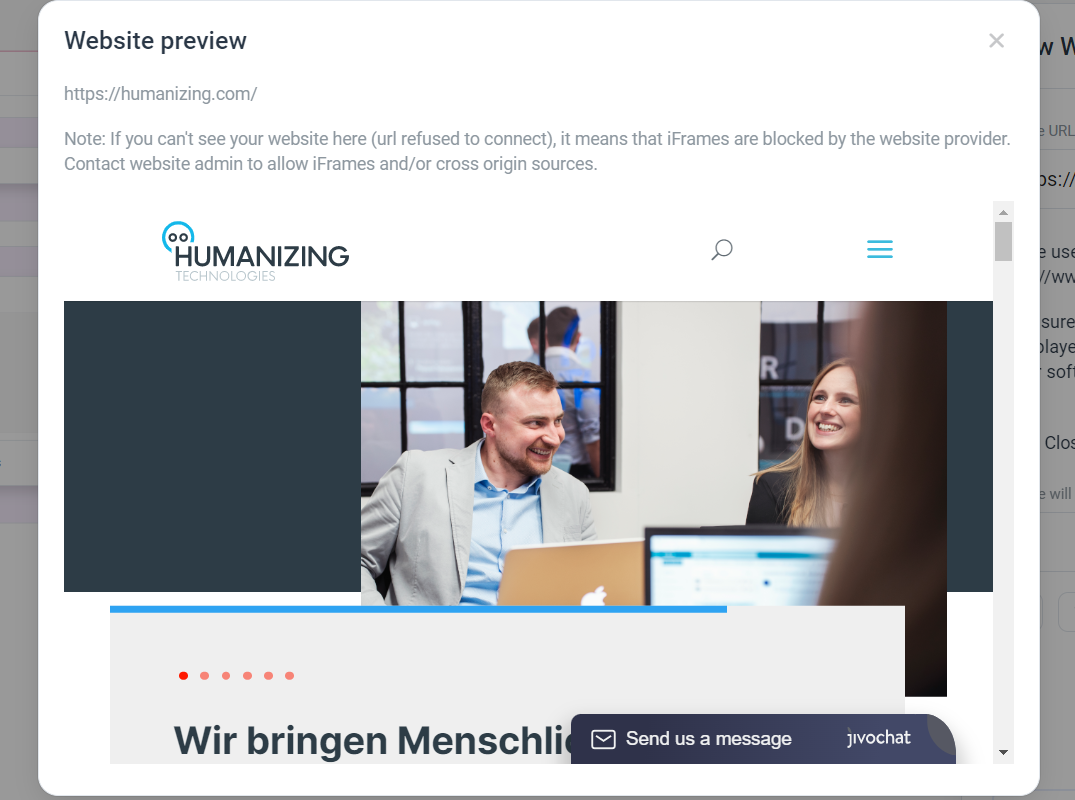
Check if the website is embeddable
There are websites that prohibit you from embedding. In this case, we cannot display the website. You can test whether your website allows the display by clicking on the “Test URL link” button.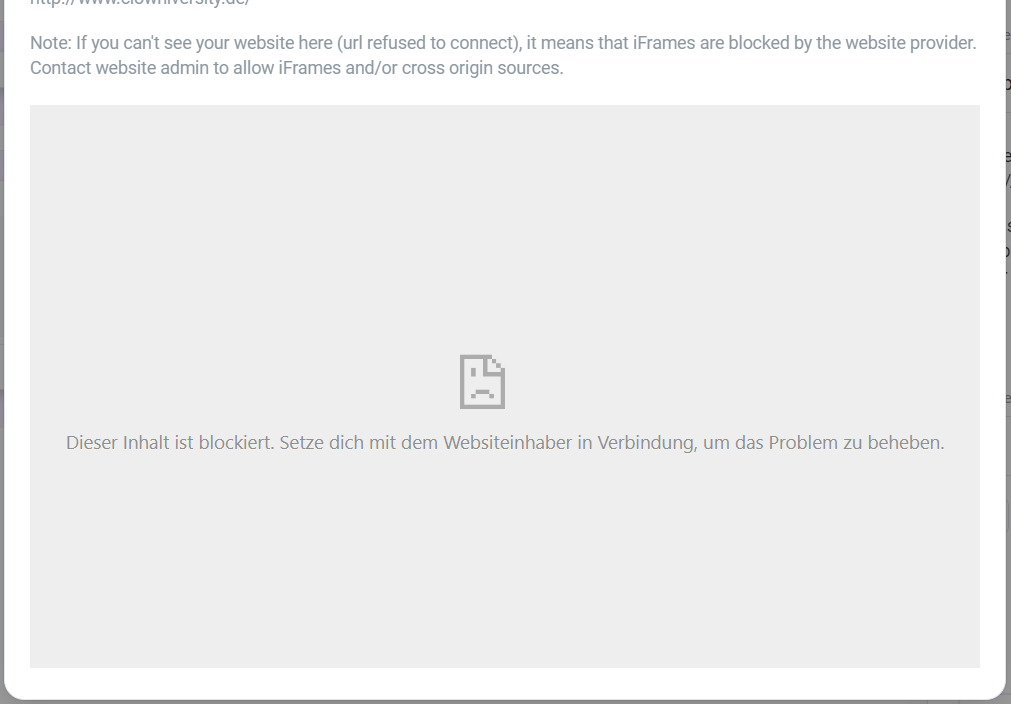
Change the link to the website dynamically
Instead of the URL of your website, enter #ATTRI/myWebsite in the input field. You can then change the variable myWebsite at runtime with the Set Userattribute & Variables element.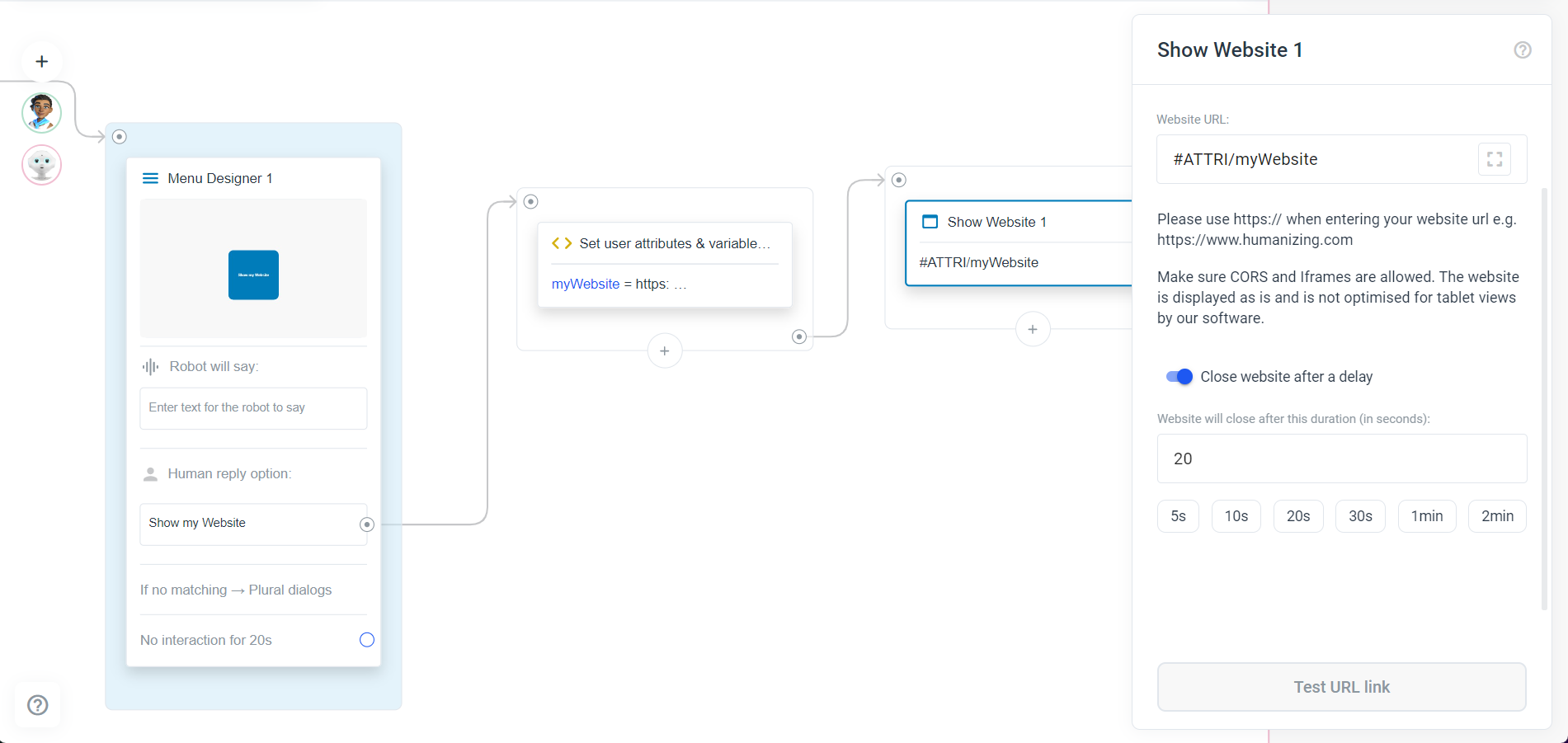
Change the style of how the website is displayed
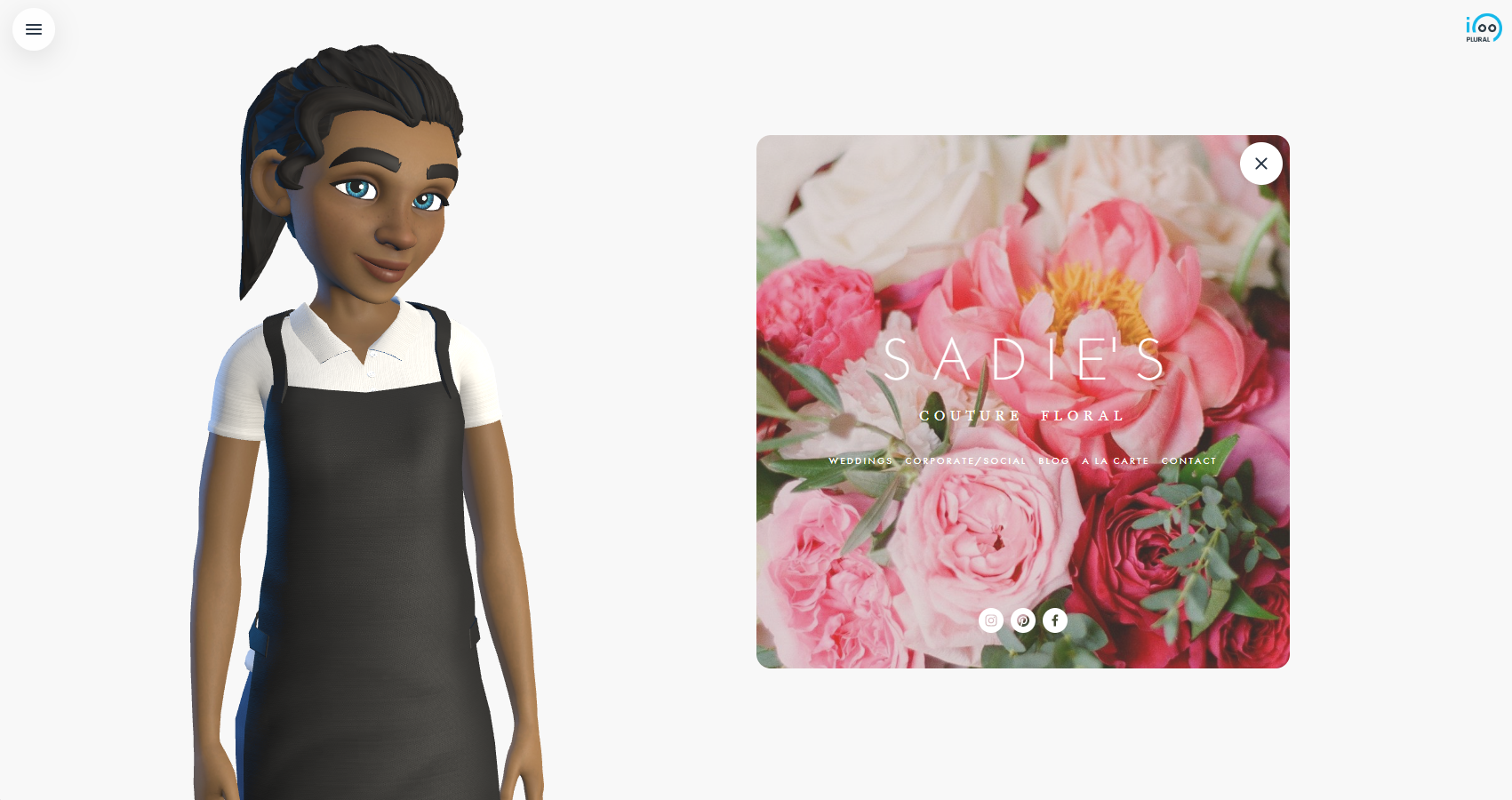
When you add the Show Website element to an **avatar frame **and click on it to display the sidebar, you will see the three options: Settings, Attributes and Params.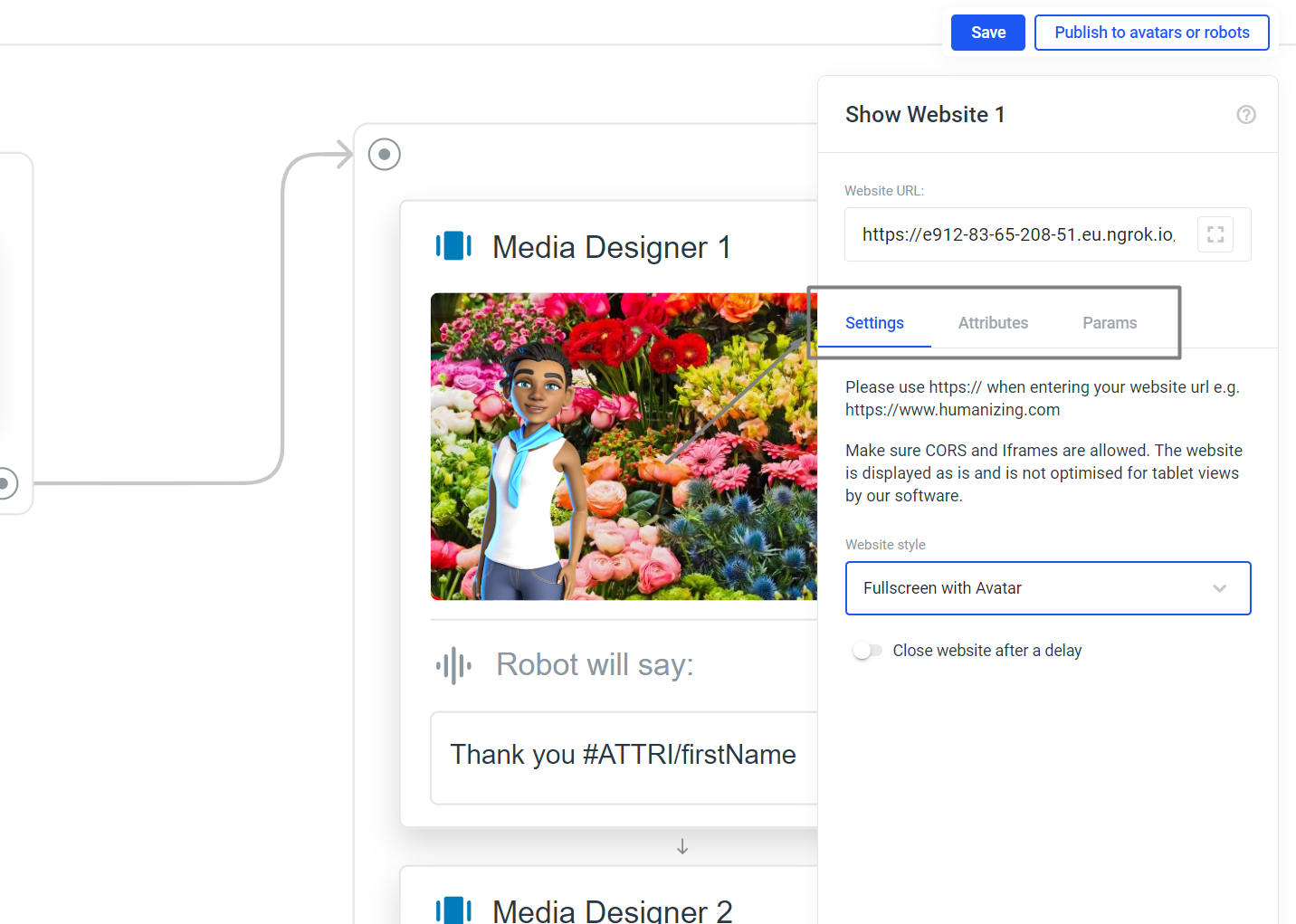 In the settings you will find a drop-down menu where you can select how the website should be displayed:
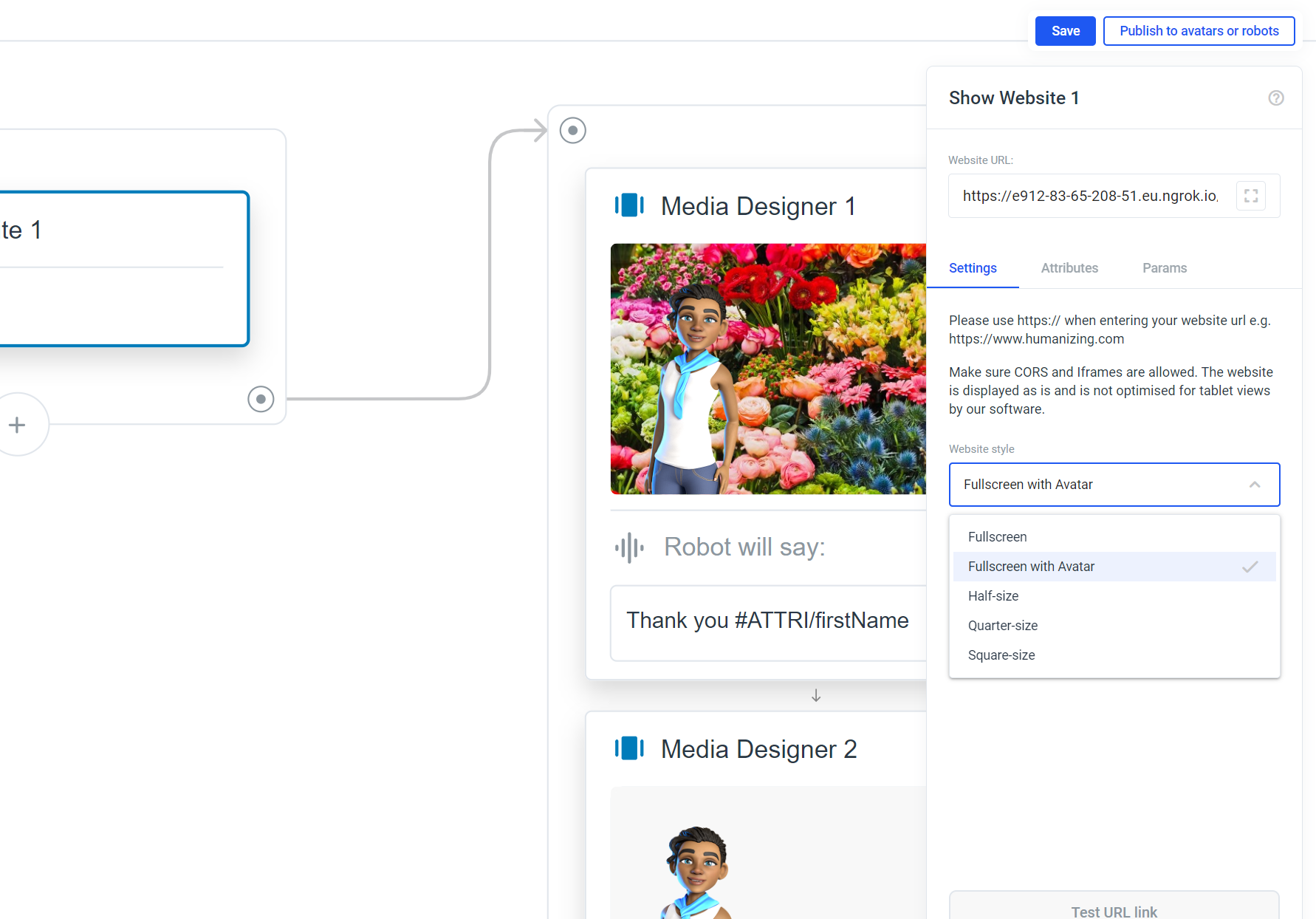
Below we show you what the style will look like:
Fullscreen: Fullscreen with Avatar:
 Half-size:
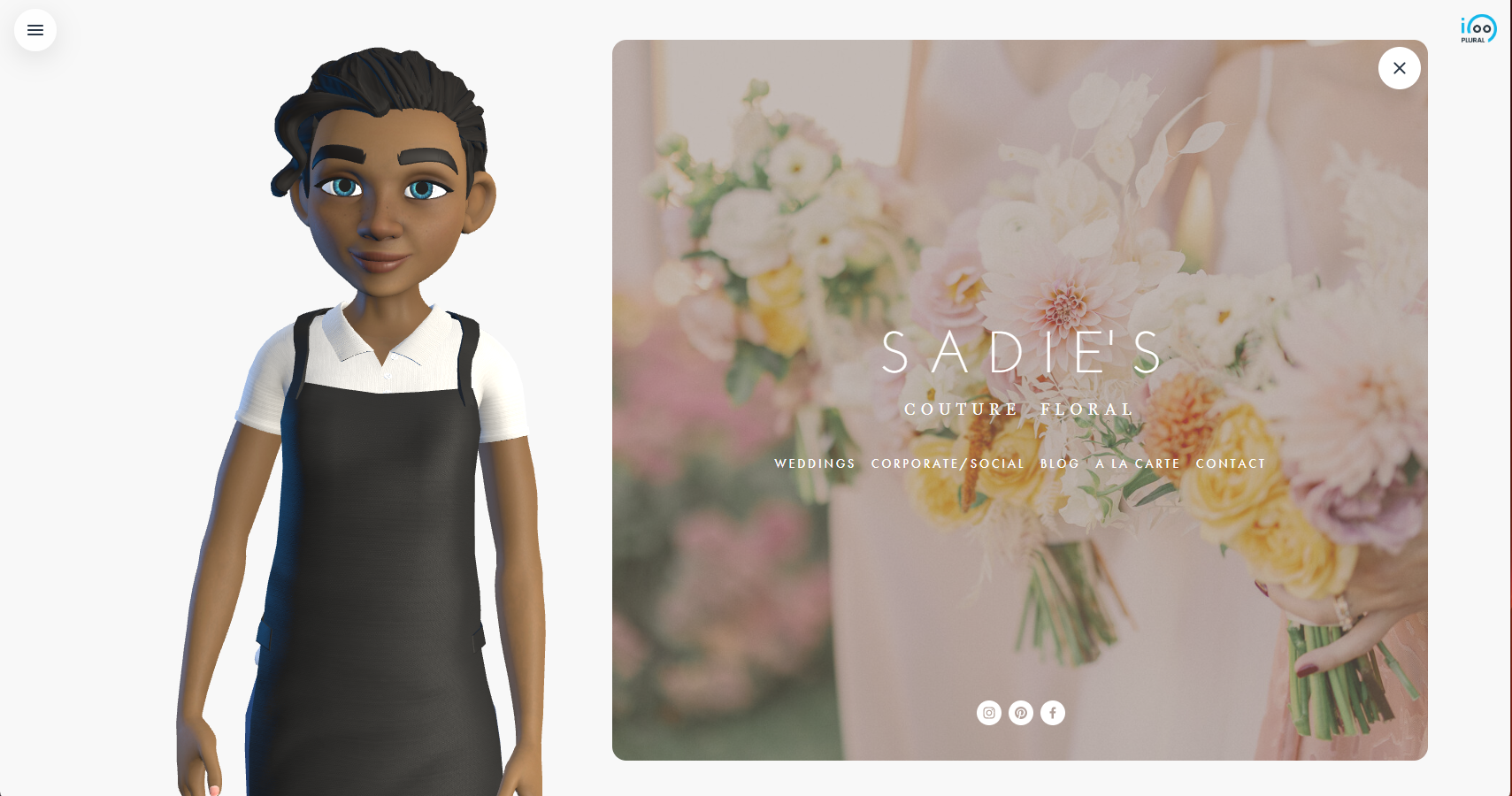 Quarter-size:
 Square-size:
Add communication between Avatarproject and your website
Access to source code or the ability to programme a website is required. As well as basic knowledge of Javascript.Communication from the embedded website to plural
Preparation: Create JS export file and required functions
Currently, Plural supports the following 3 messages that you can send from your embedded website:- Speech: Allows you to invoke speech that is output from the avatar using Google Text to Speech (tts).
- Set Variable: Allows you to send a key-value pair that is treated as an attribute in Plural
- Close: Allows you to send a command that closes the website and resumes the project flow.
Initiate avatar speech, which is then output in the avatar project (Speech)
Use the send function with the type ‘say’ and specify as utterance what the avatar should say. The utterance is what Plural Online (via Google TTS) will output in its current language model.Send data and use as an attribute in plural (Set Variable)
The following JS code calls the send function, uses the set variable as type and transmits data in JSON format: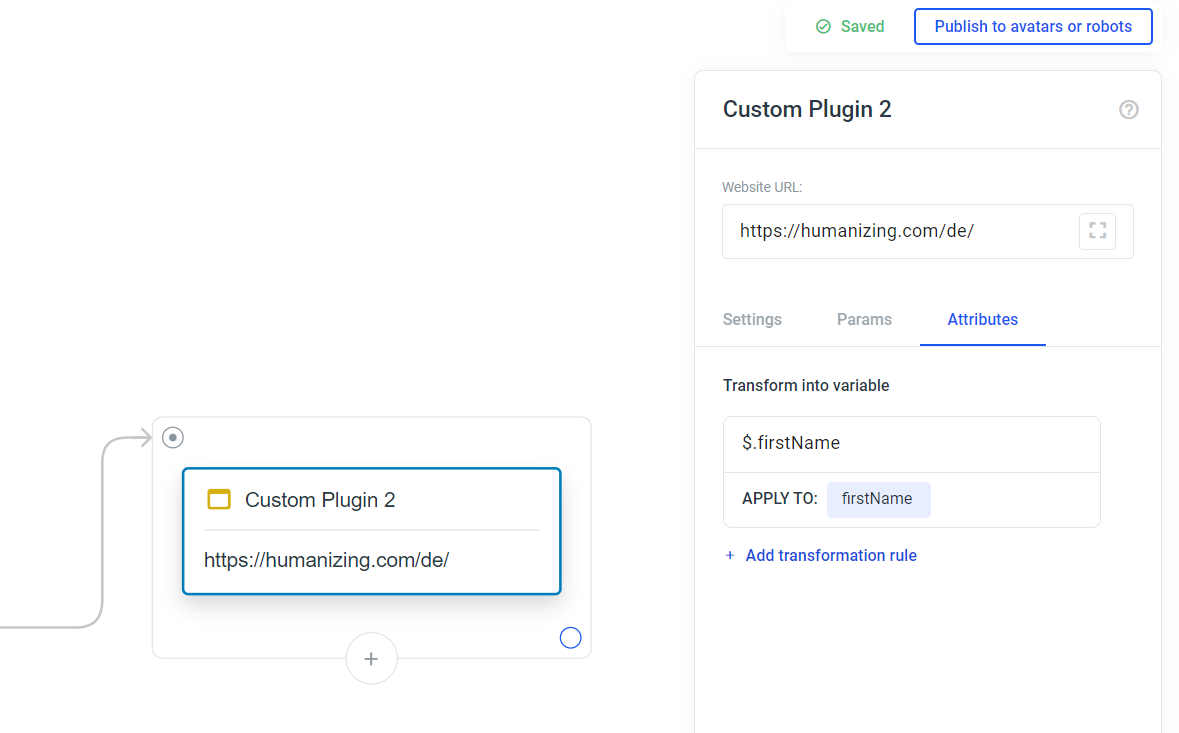 Write
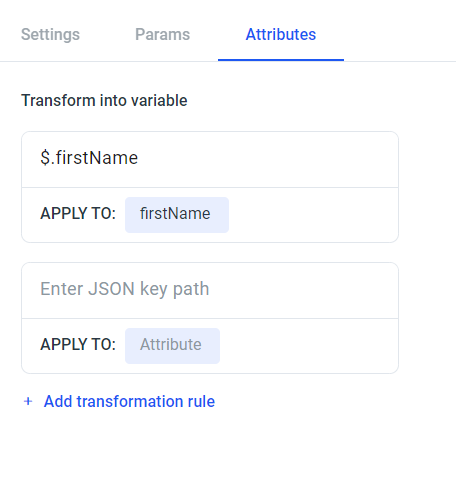
Write $.KeyFromJSONPath e.g. $.firstName in the Enter JSON key path input field to access the key-value pair from the data you submitted and enter an attribute name under which you want to use it in plural e.g. firstName:
Send the close command (close)
Use the function send with type ‘close’ to send a close command:{ stopSpeech: true } as a payload to make the avatar stop speaking when the close command is executed.
Communication from plural to the embedded website
In Plural switch to Params: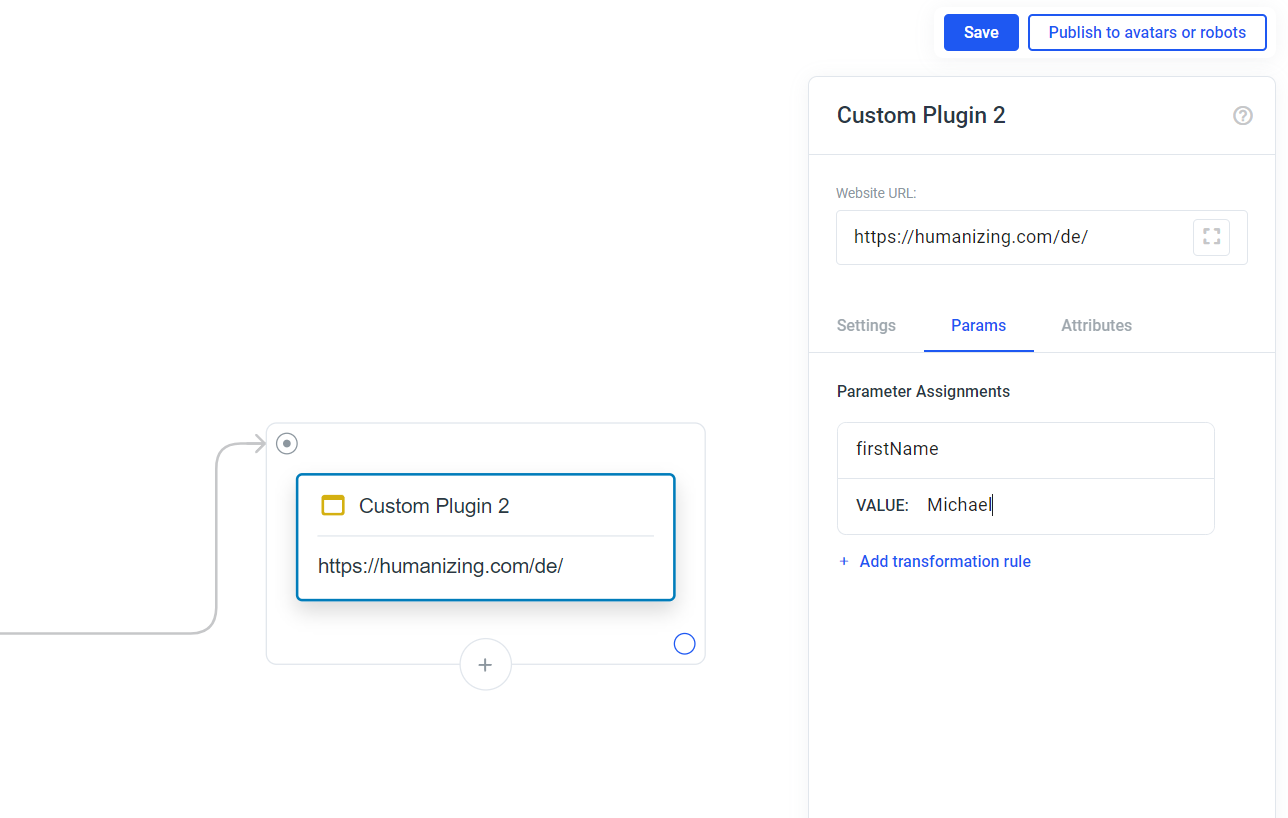 Here you have the option to add parameters. These are appended to the URL of the embedded website. You can simply enter a string or you can use the #ATTRI/attributeName, whereby attributeName must be set in your project beforehand.
Here is a completed example:
Here you have the option to add parameters. These are appended to the URL of the embedded website. You can simply enter a string or you can use the #ATTRI/attributeName, whereby attributeName must be set in your project beforehand.
Here is a completed example:
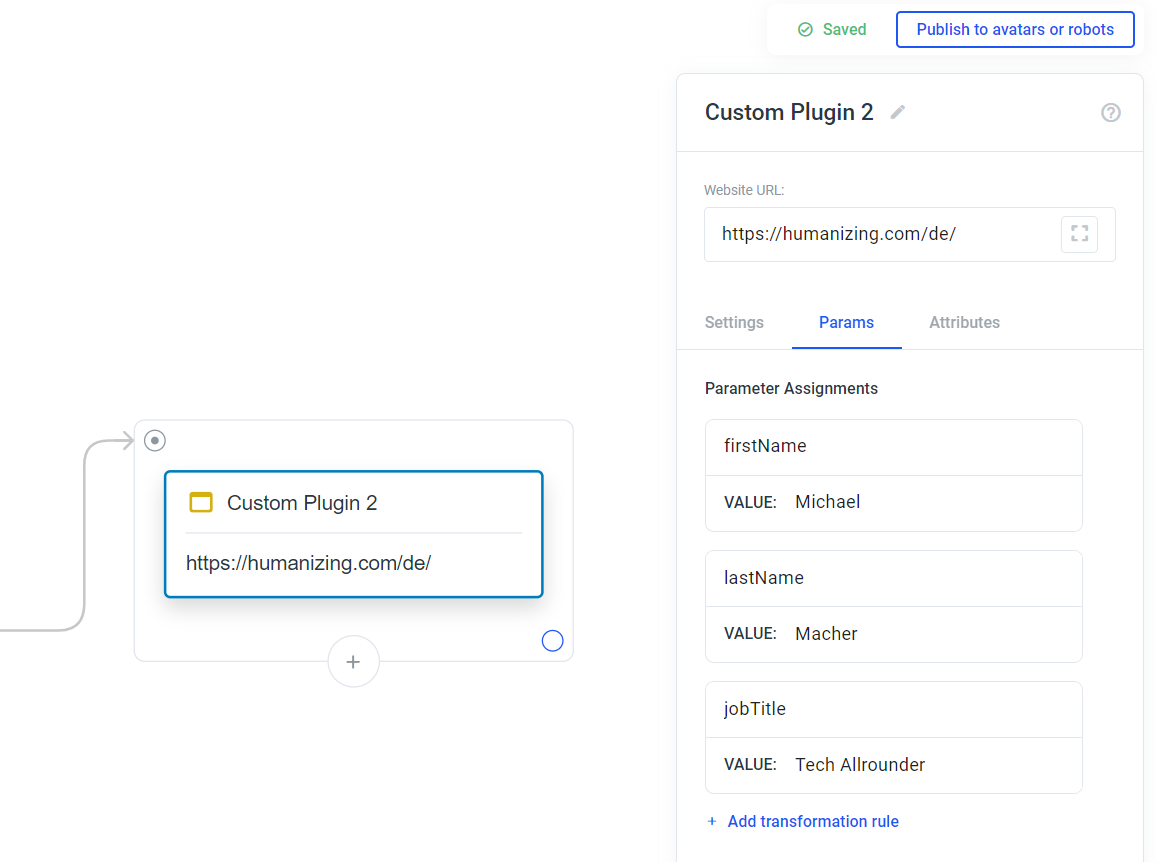 In the JS script code of the embedded website, you can pass through and use the parameters:
const uri = window.location.href.split(’?’);
if (uri.length === 2) {
const params = uri[1].split(’&’);
return params.map((p)=> p.split(’=’))
.filter((p)=> p.length ===2)
.filter(([key])=> key ===‘name’)
.shift()[1];
}
In the JS script code of the embedded website, you can pass through and use the parameters:
const uri = window.location.href.split(’?’);
if (uri.length === 2) {
const params = uri[1].split(’&’);
return params.map((p)=> p.split(’=’))
.filter((p)=> p.length ===2)
.filter(([key])=> key ===‘name’)
.shift()[1];
}
getURLParameters() function returns an object with the keys and values of the URL parameters.