
Disclaimer:
The Avatars have been developed for the Google Chrome browser. Google Chrome cannot be used in the Kiosk mode of Windows. Therefore you need to go with the Microsoft Edge browser, if you want to use the Kiosk mode as described in this tutorial. Be aware that there might be features, functions, designs and settings of your Avatar that are displayed differently from what you are used to from your Google Chrome browser. Some features and functionalities might not even work correctly. If you face such kind of problems, please let us know! But also please understand that we might not be able to change something about the problem.Step-by-step guide
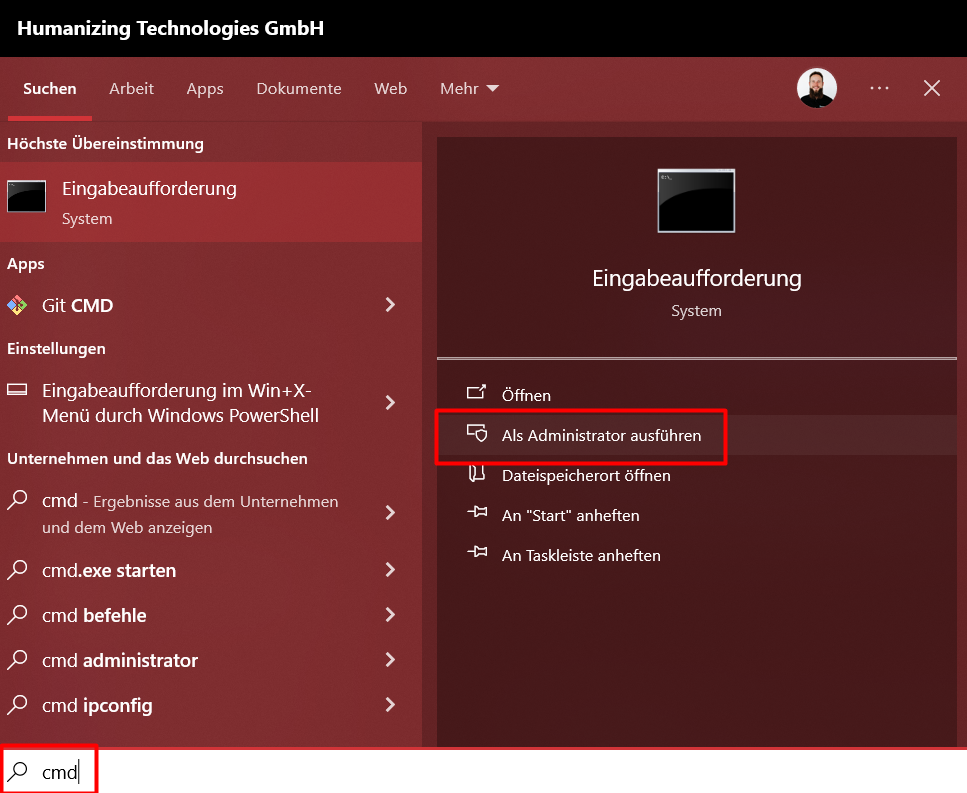
- Press the “Windows”-key on your keyboard and enter “cmd”. Then select “Run as administrator”:
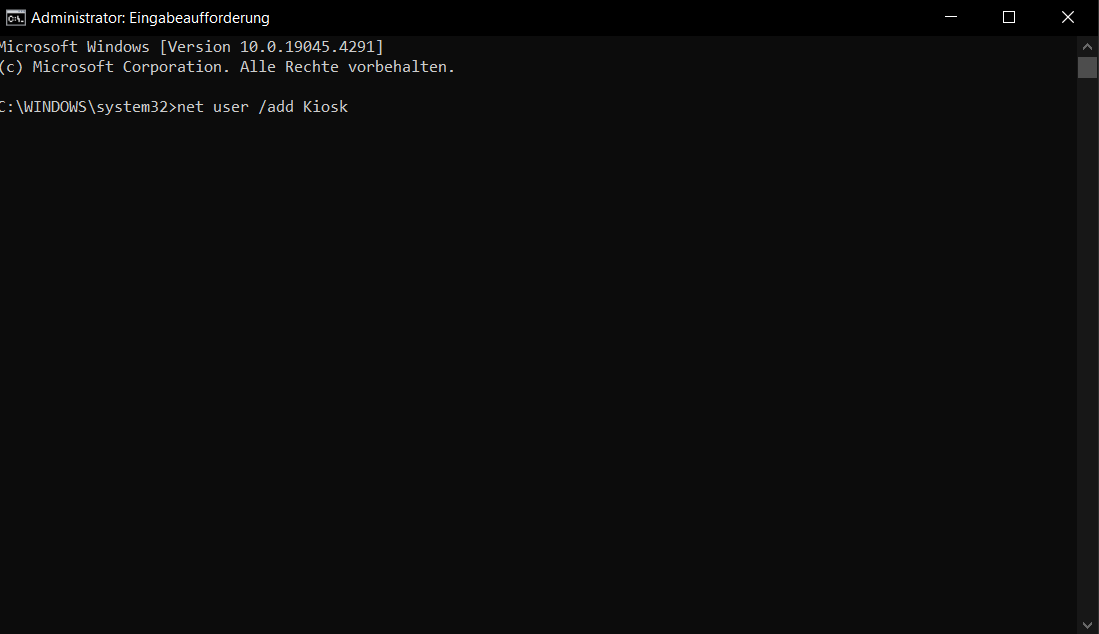
- Now enter the following command and confirm by pressing “Enter” on the keyboard: “net user /add Kiosk”
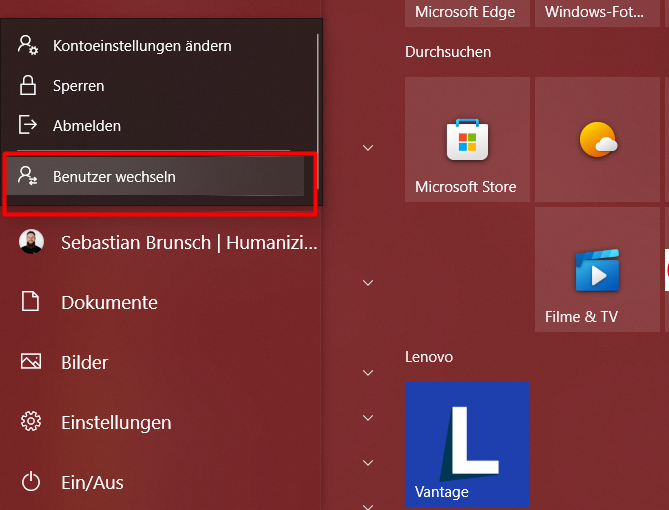
- When the user has been successfully added, press on the “Windows”-key again and switch the user to “Kiosk”:
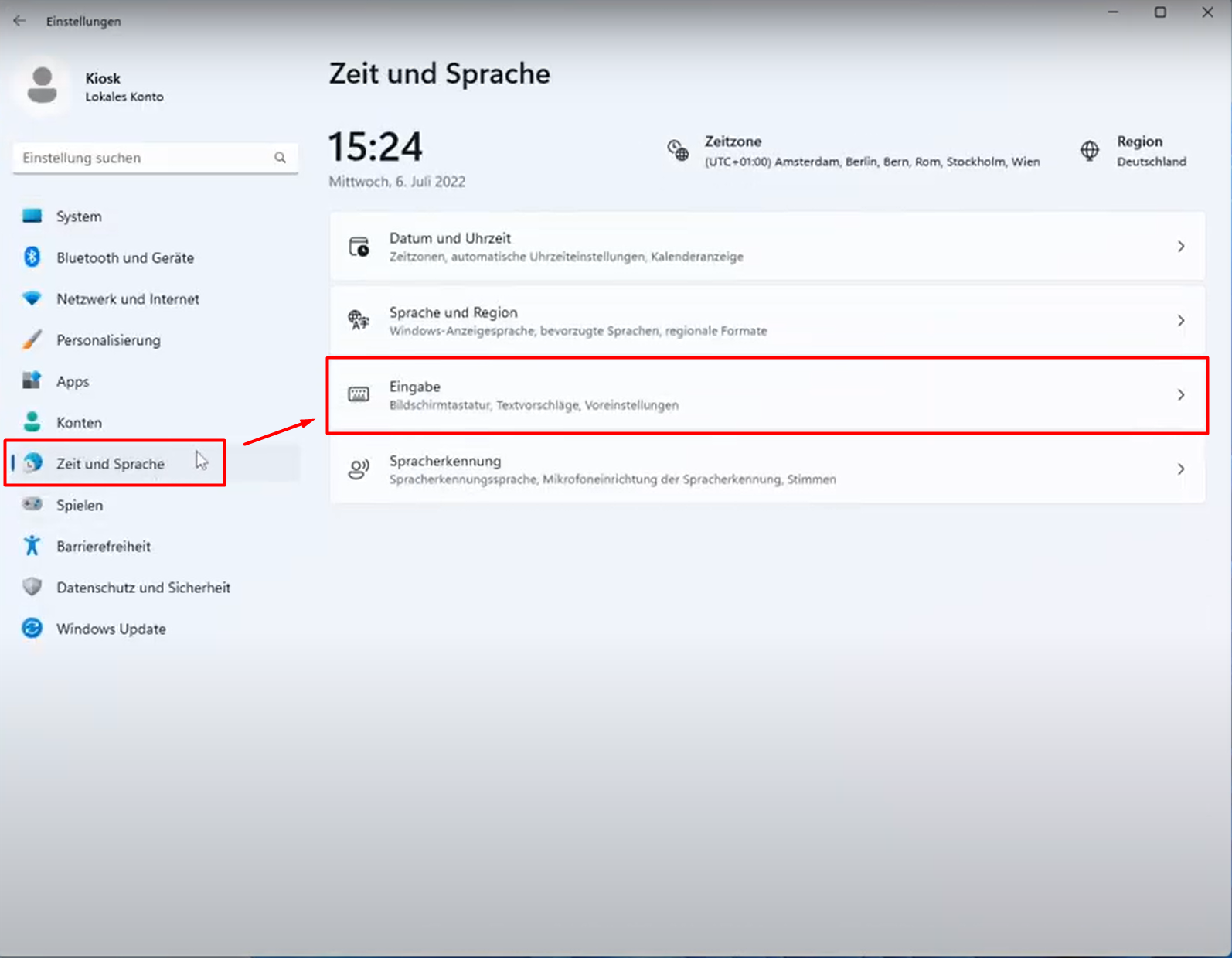
- Set up the new user as you wish. For example: if you want to enable the virtuel keyboard (helpful for user input fields), go to the Windows settings:
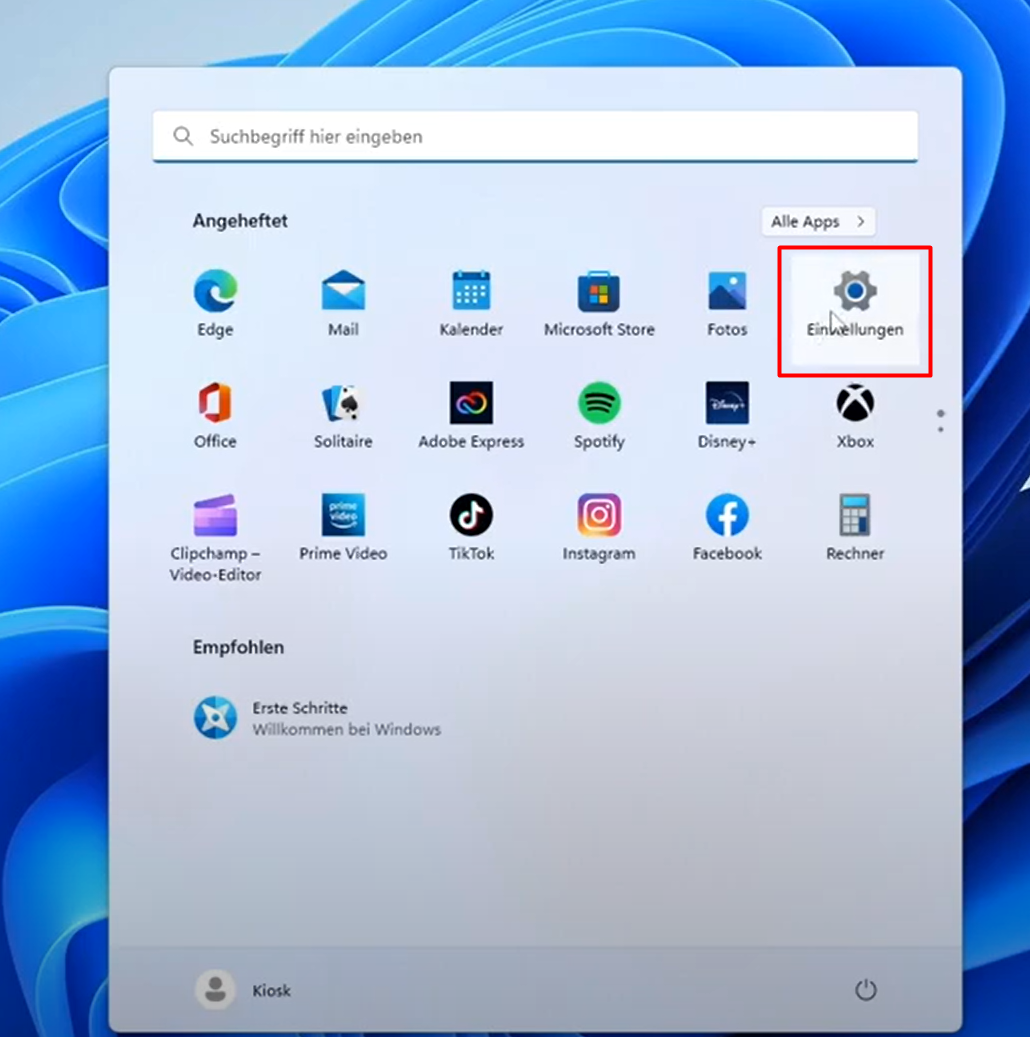 Select “Time and language” and “Keyboards”:
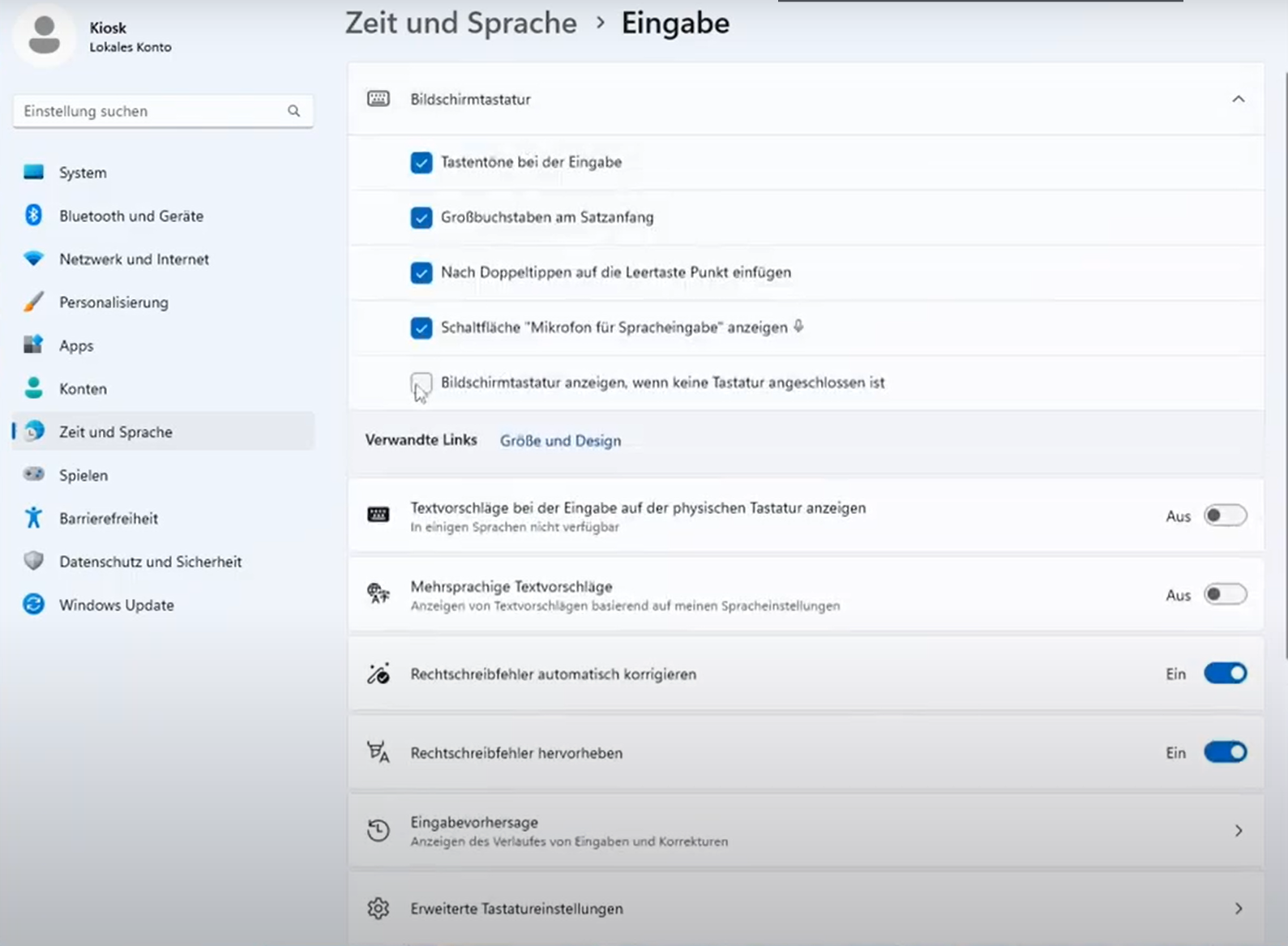
 Select “virtual keyboard” and checkmark the last point “always”:
- If you don’t want the MS Edge browser to ask for permission to use the microphone and camera each time the PC is started, the following entry must be made in the registry.
For the camera
Create a new key under the path: Computer\HKEY_LOCAL_MACHINE\SOFTWARE\Policies\Microsoft\Edge\VideoCatpureAllowedUrls A new “string” is then created under this path with the name “1”, which then looks like this: Computer\HKEY_LOCAL_MACHINE\SOFTWARE\Policies\Microsoft\Edge\VideoCatpureAllowedUrls\1 Double-click on the character string and the URL of the Avatar needs to be entered: https://go.plural.io/s/AVATAR-IDFor the microphone
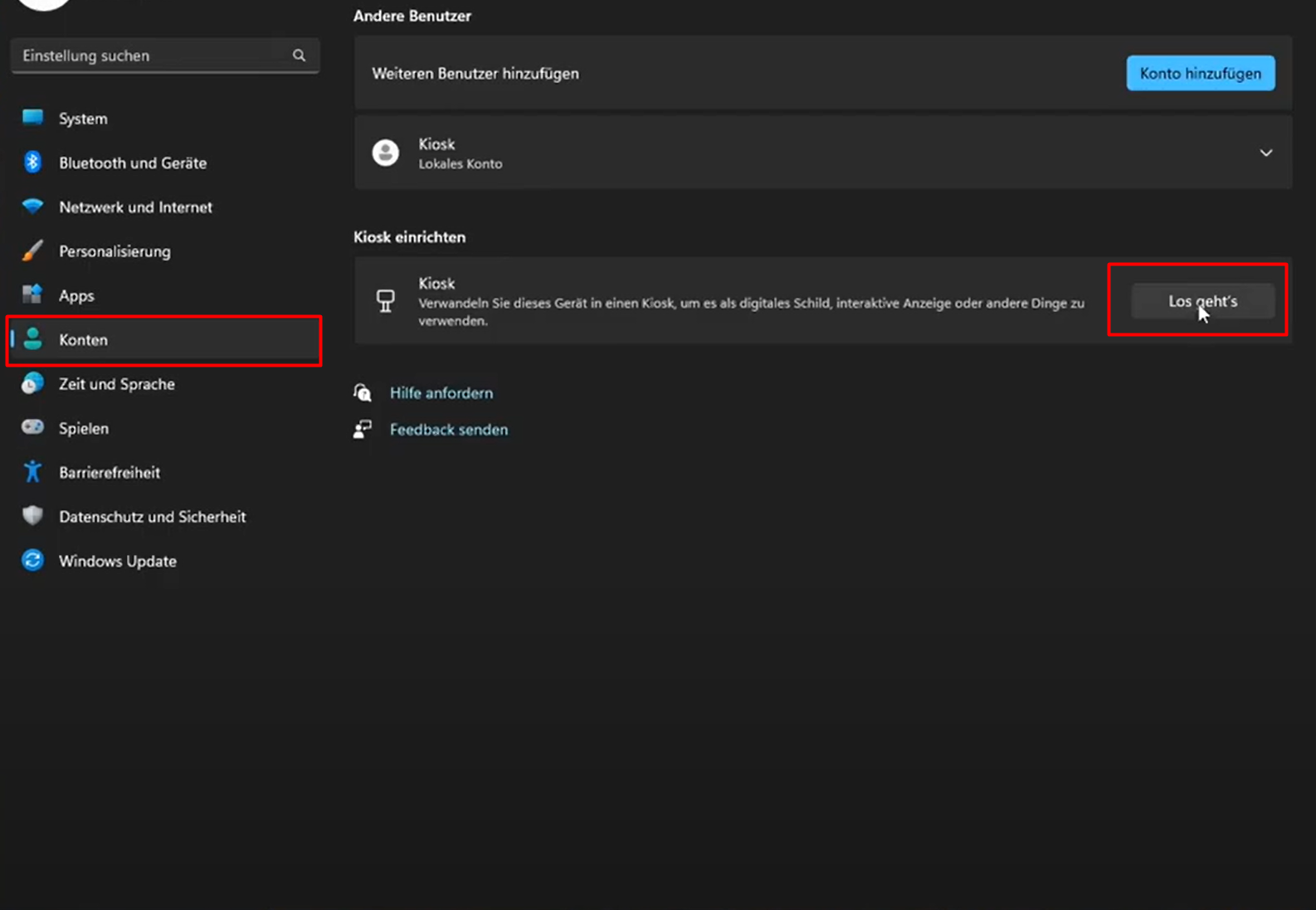
Create a new key under the path: Computer\HKEY_LOCAL_MACHINE\SOFTWARE\Policies\Microsoft\Edge\AudioCatpureAllowedUrls A new “string” is then created under this path with the name “1”, which then looks like this: Computer\HKEY_LOCAL_MACHINE\SOFTWARE\Policies\Microsoft\Edge\AudioCatpureAllowedUrls\1 Double-click on the character string and the URL of the Avatar needs to be entered: https://go.plural.io/s/AVATAR-ID- When all settings are done, switch back to your main user. Go to the Windows settings and select “Accounts”. Then click on “Let’s go” in “Setup Kiosk”:
- Select “Existing account”:
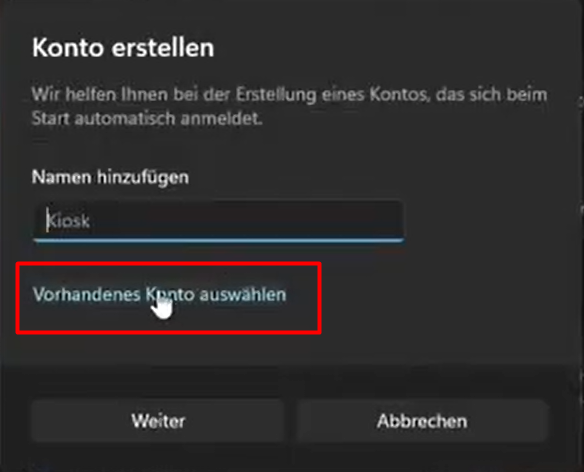
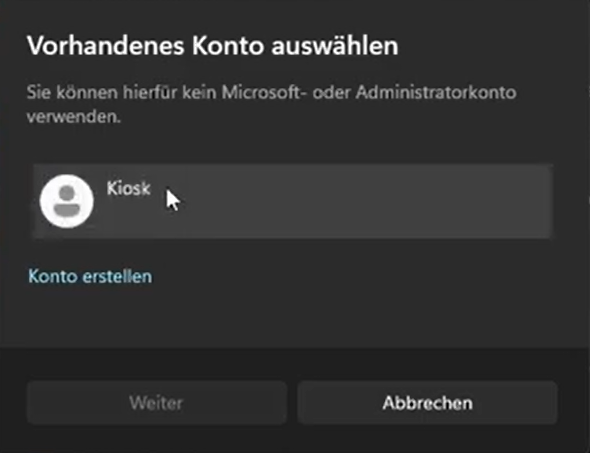
- Select your existing Kiosk account:
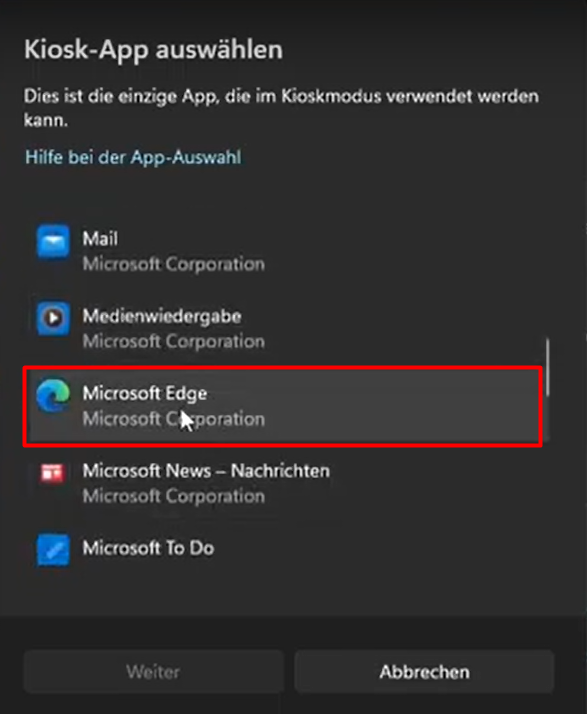
- Choose the Microsoft Edge application:
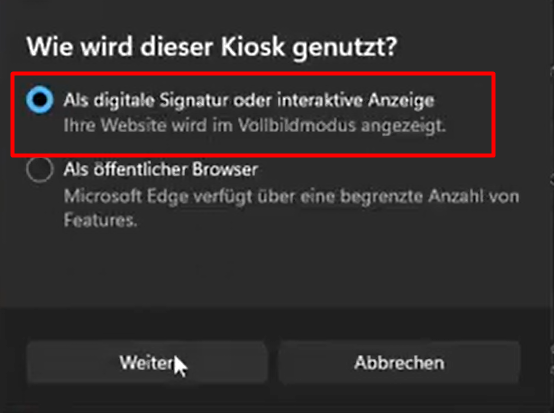
- Select “Digital Signature”:
- Enter the URL of your Avatar and decide wheather you want to have the Avatar website beeing reloaded if no one is interacting with it:
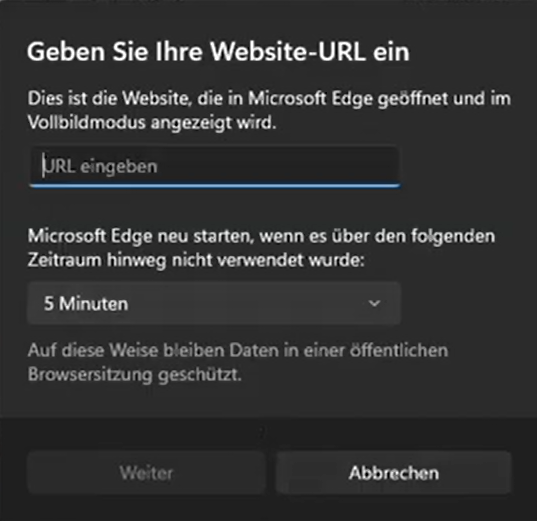 For example: https://go.plural.io/s/…
- That’s it! If you switch to the Kiosk User now, it will automatically open the Microsoft Edge application and load your Avatar in full screen. Remember, that you cannot leave that account if you don’t have a physical keyboard attached. If so, hit “Ctrl”+“Alt”+“Del” to leave the Kiosk mode, or just shut down your PC.