
Activate the speech recognition for your Avatar
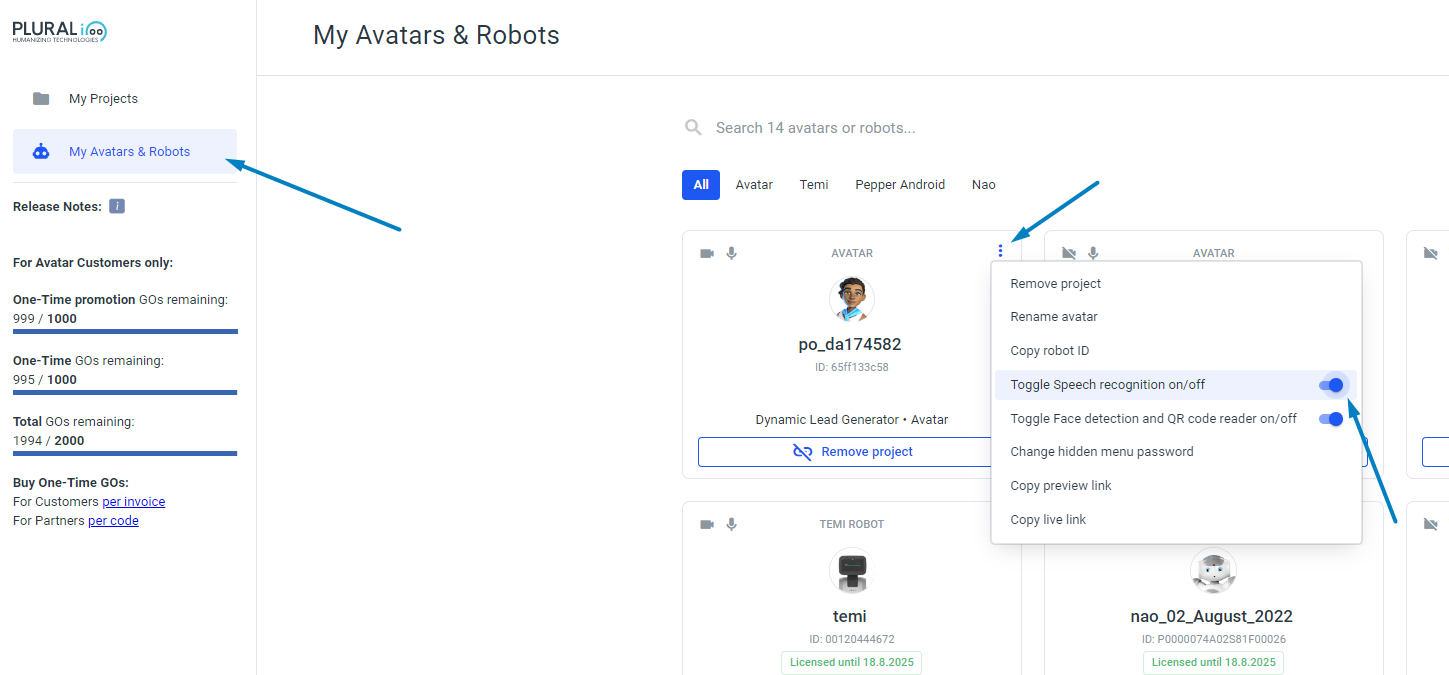 When speech recognition is enabled, the avatar answers questions from the standard dialog if the switch for plural dialogs is enabled.
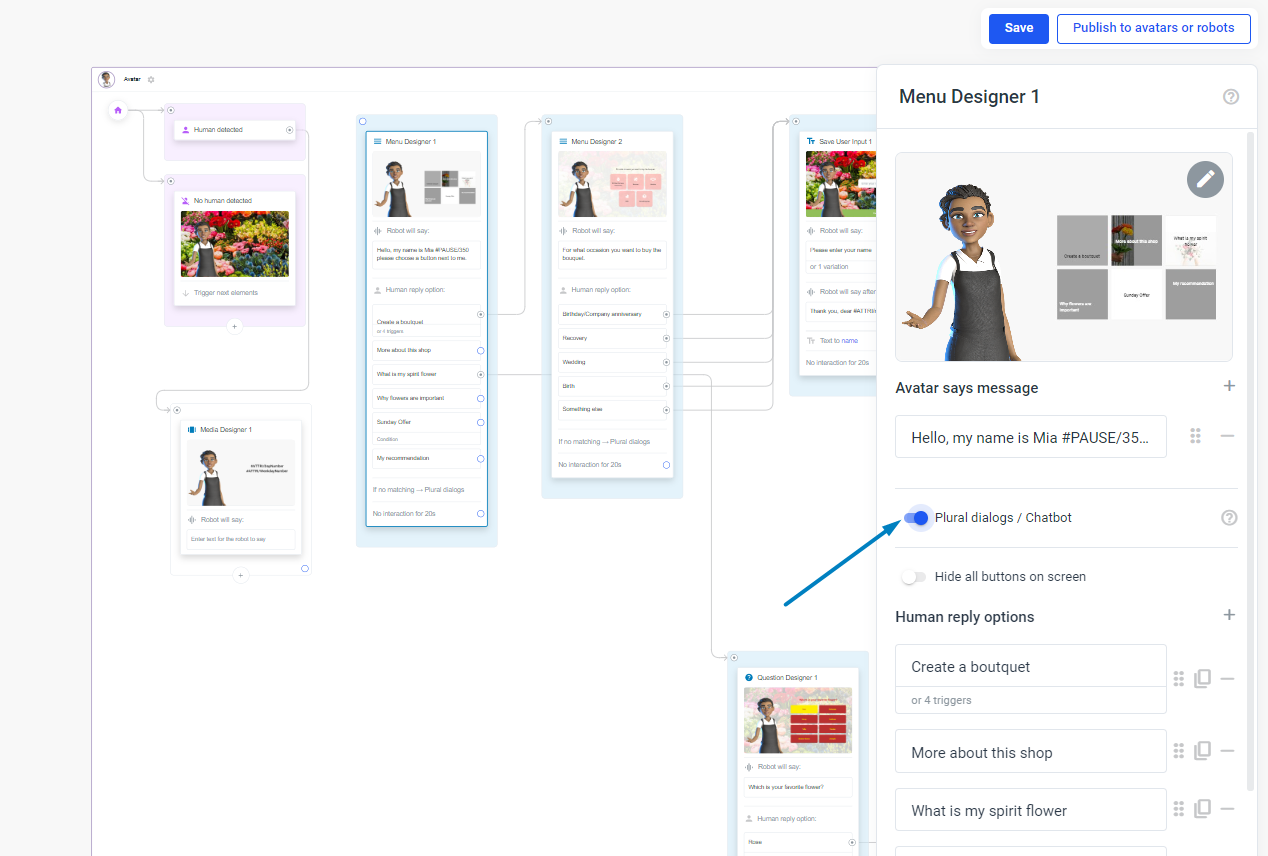 In addition, each button title is automatically a voice trigger e.g. in Menu and Question Elements.
Speech recognition is also be used when activating a custom chatbot.
In addition, each button title is automatically a voice trigger e.g. in Menu and Question Elements.
Speech recognition is also be used when activating a custom chatbot.
Make sure that the browser running the avatar has the right to access both the microphone and the website
For example, the Chrome browser has two indicators that it is accessing your microphone.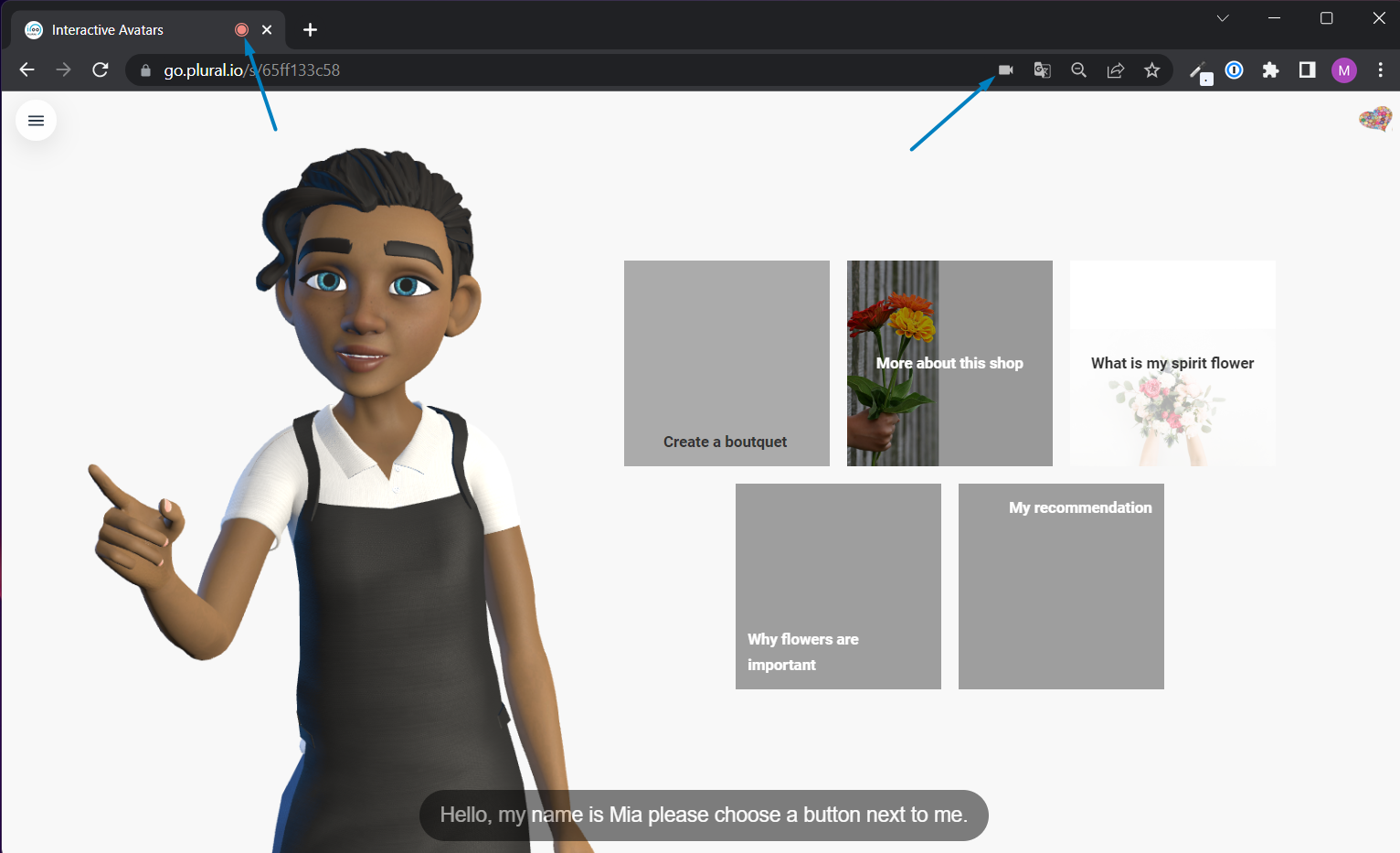 Navigate to your browser settings and search for Microphone. Here you should be able to give the avatar’s website access to the microphone.