
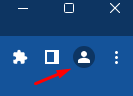
 Add a new User:
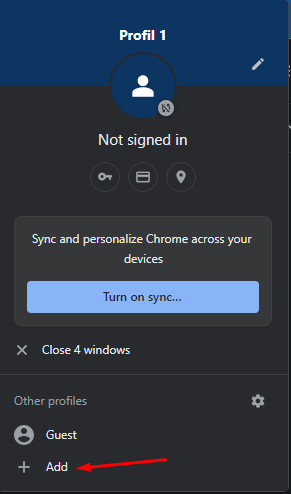 You don’t need to add an account:
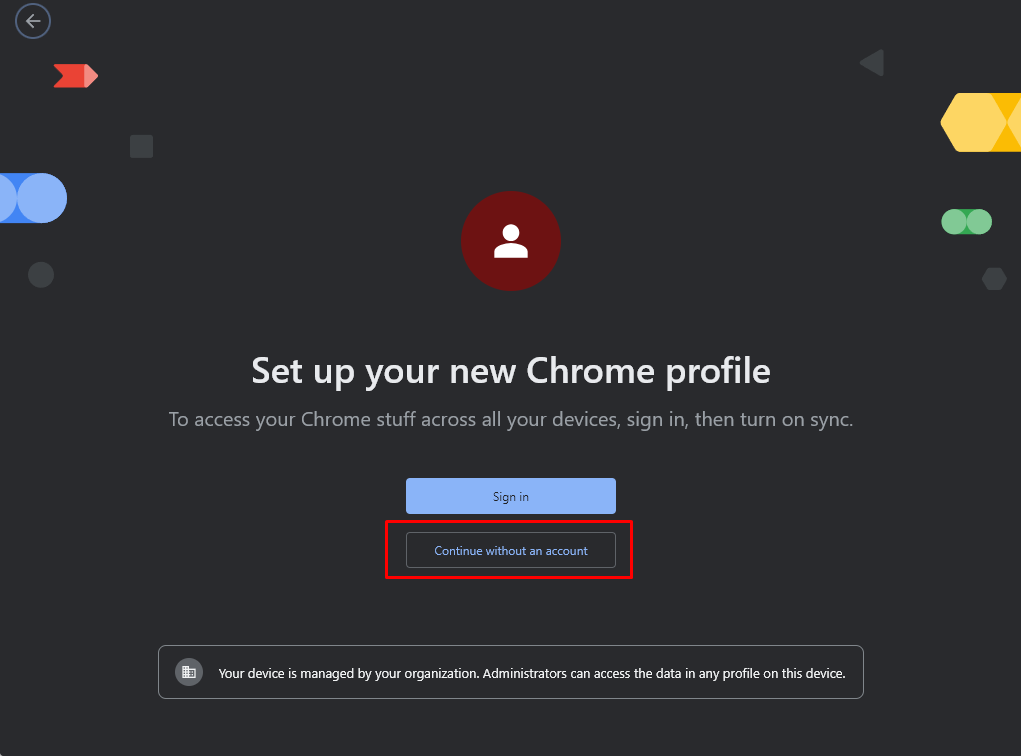 Then give the profile a name:
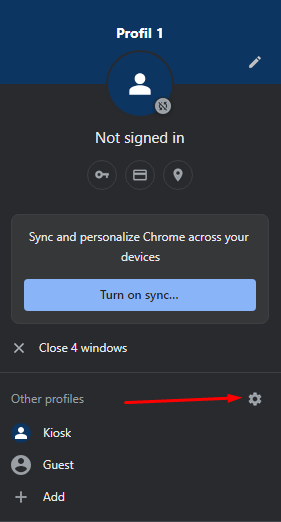
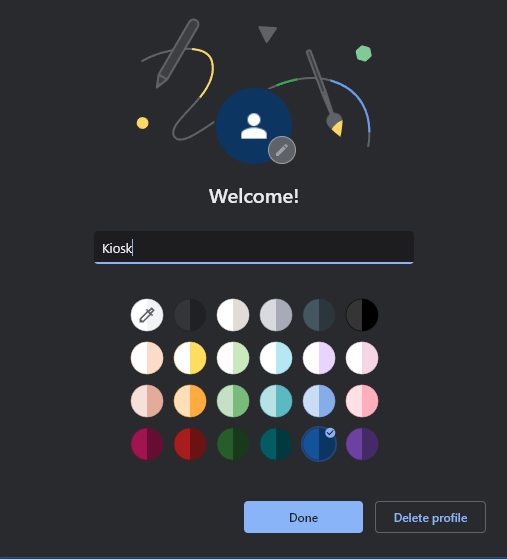 Now click on the User icon on the top right again and select the profile settings:
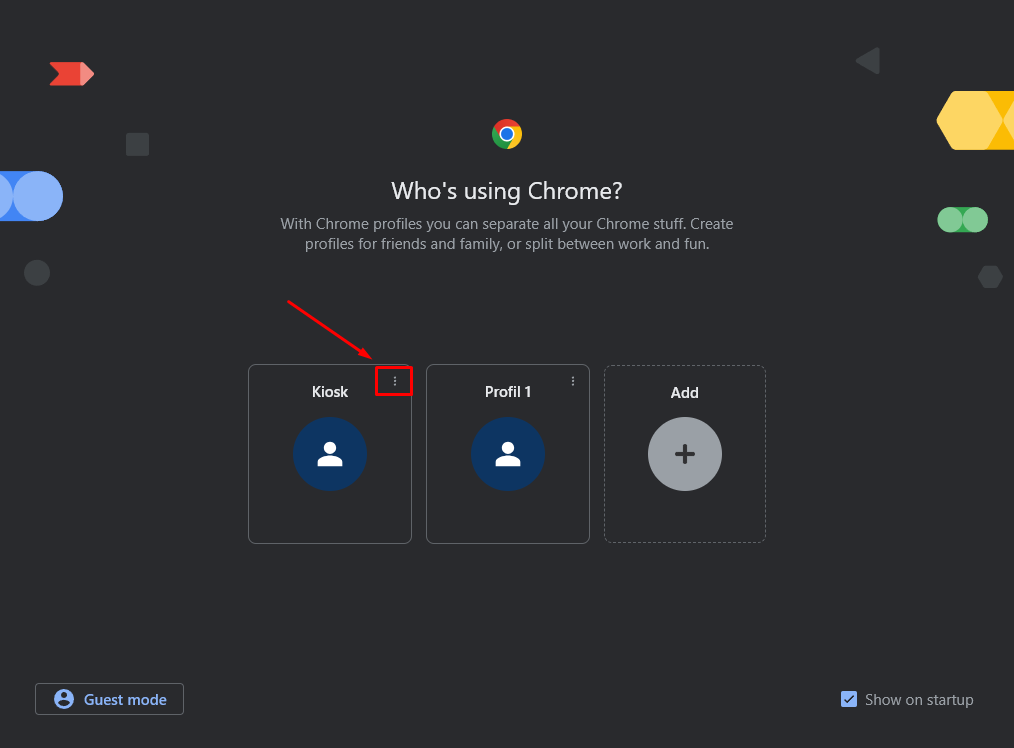
 Click on the three dots of the newly created profile and choose “edit”:
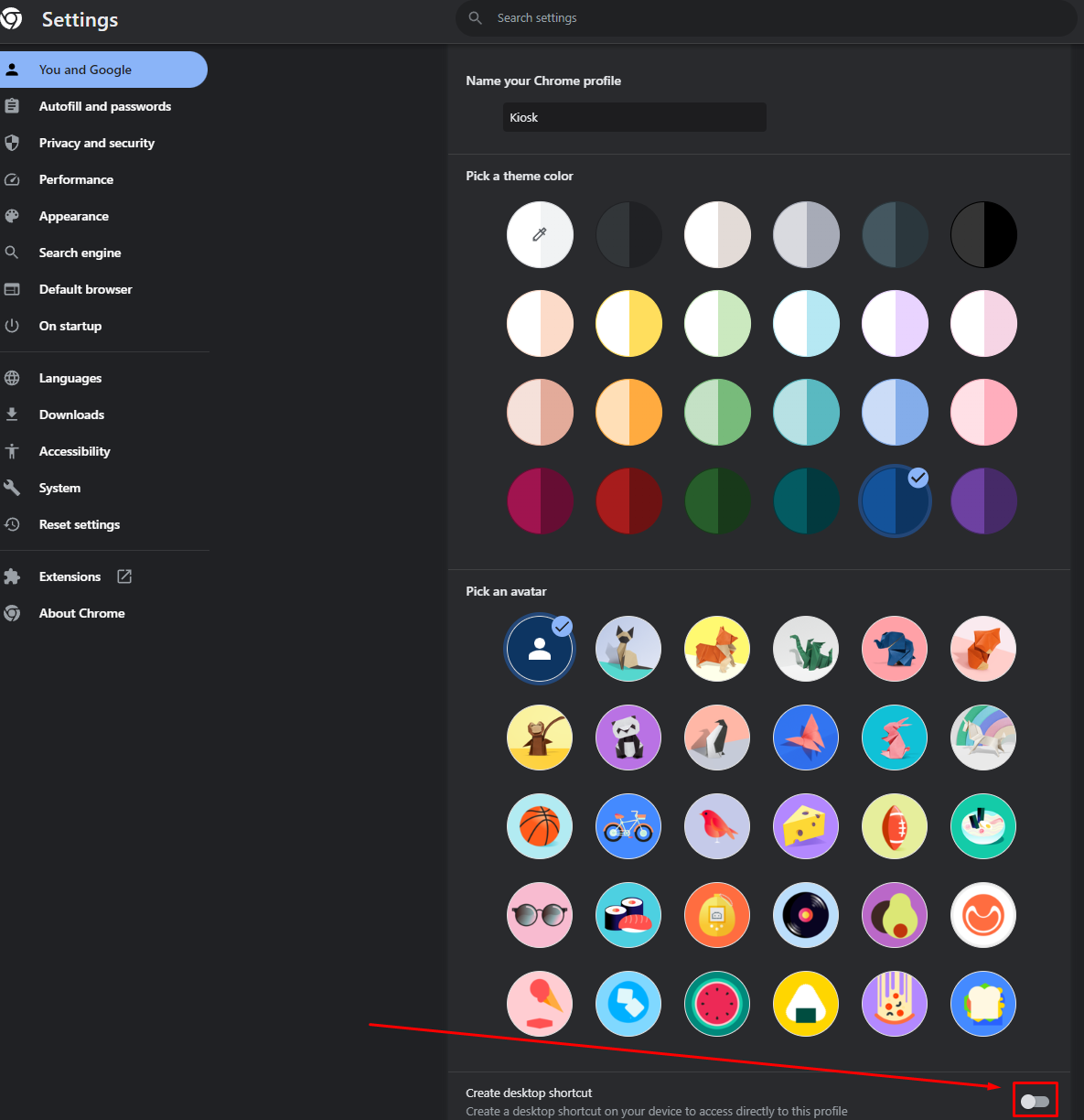
 Now scroll down and toggle on “Create desktop shortcut”:
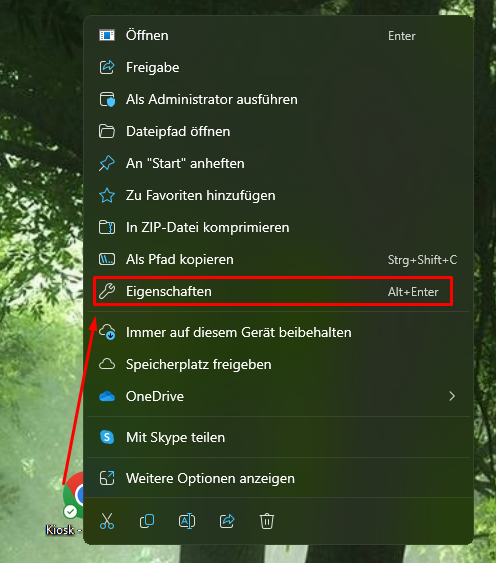
 Now right click the icon on your desktop and choose “settings”:
 You can now add your link, for example:
_— kiosk _https://go.plural.io/s/54a4867a00
You can now add your link, for example:
_— kiosk _https://go.plural.io/s/54a4867a00
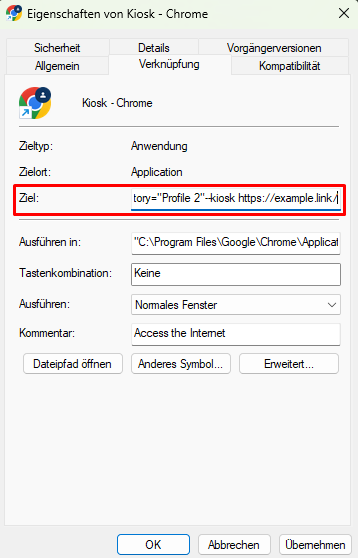 Now if you start through this desktop shortcut, it will show the website you added in fullscreen.
It can only be left by pressing Alt+F4
Now if you start through this desktop shortcut, it will show the website you added in fullscreen.
It can only be left by pressing Alt+F4
Making the Avatar load automatically at the start of the computer:
- Open File Explorer.
- Open the folder containing shortcut icon of your Avatar (Chrome).
- Right-click on it and select the Copy option.
- Use the Windows key + R keyboard shortcut to open the Run command.
- Type the following command: shell:startup
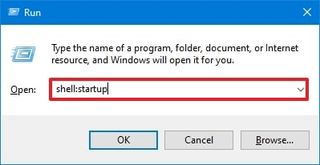
- Click the OK button.
- Now paste the shortcut icon of your Avatar into the opened startup folder:
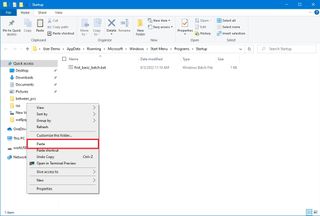
Killing the explorer at the startup of the computer (for more security):
ATTENTION: By killing the explorer, you also disable the virtual keyboard. This makes the Kiosk functionality more secure, but simultaniously you are not able to use the “User input field element” with a virtual keyboard anymore. So be sure, you do not need a virtual keyboard in your use case/project!- Create a batch file with your Windows editor:
- Continue with “Making the Avatar load automatically at the start of the computer” (from above). But this time take the batch file instead of the shortcut icon.
- Press Ctrl+Alt+Del on your keyboard and choose “Task-Manager”
- Select “Start new task”:
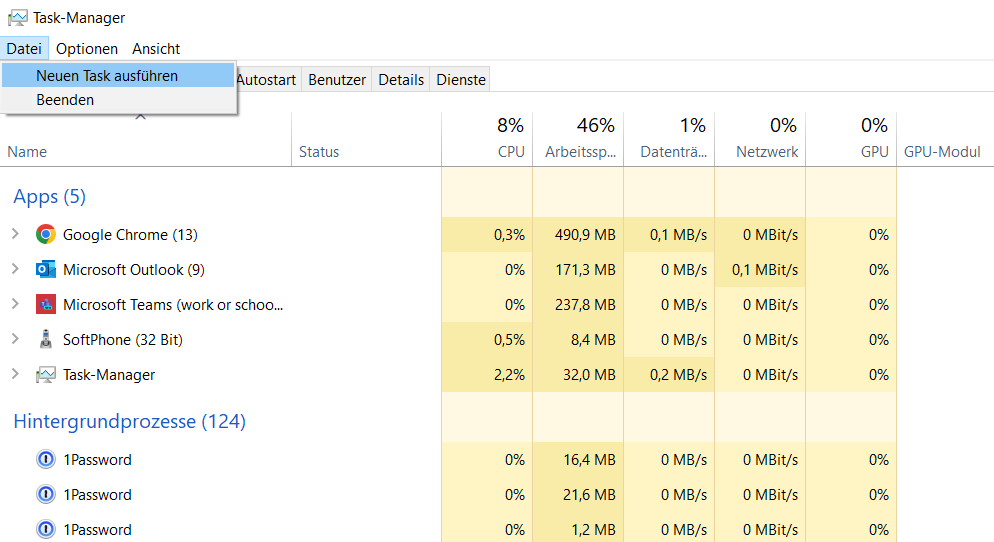
- Type in “explorer.exe” and hit “run”.