
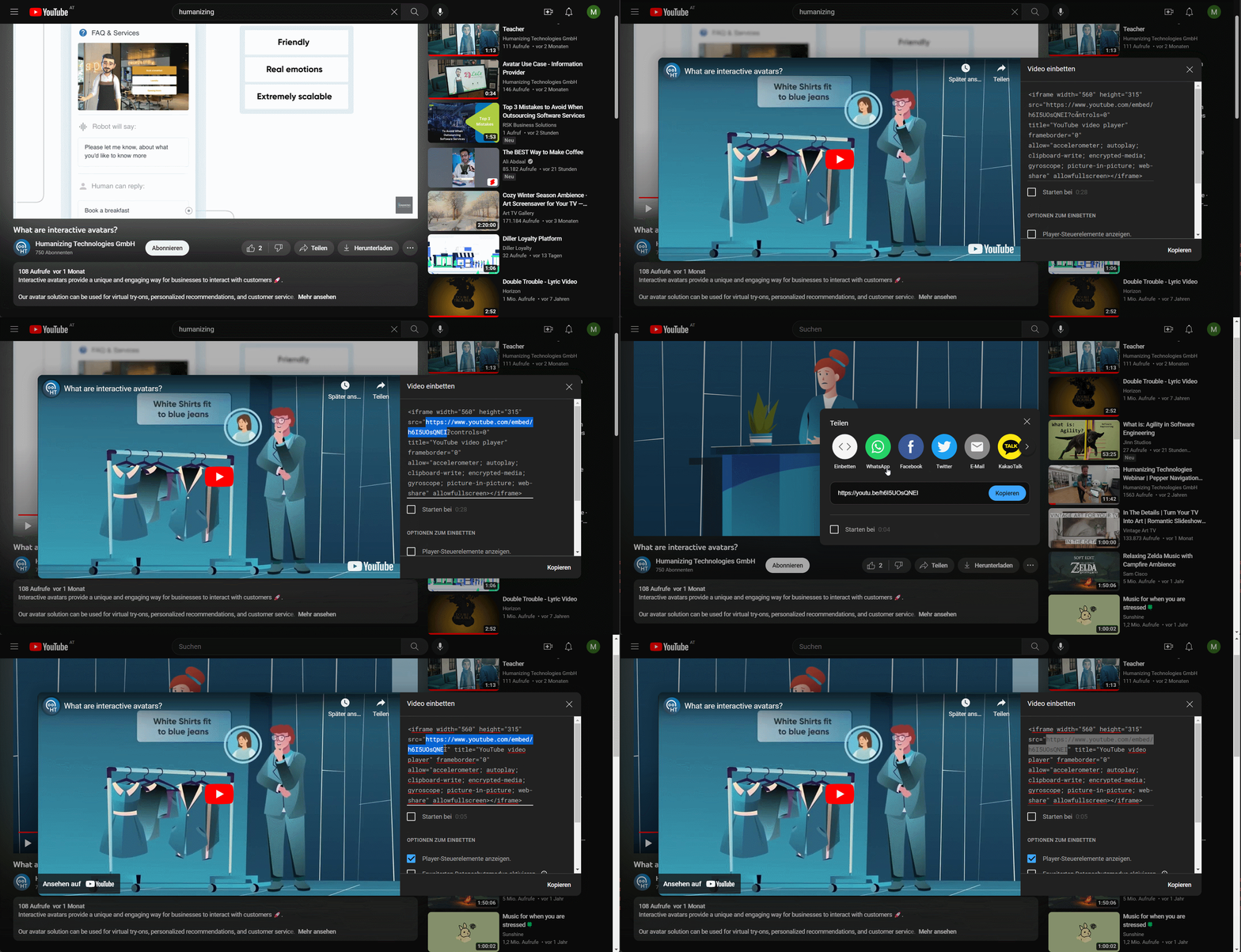
- First, you need to get the embed link of the YouTube video you want to use. To do this, navigate to the YouTube video, click on the “Share” button below the video, and then select “Embed.” Copy the link from the code shown. (If you see something like ?controls=0, don’t copy it, we don’t need it in this case).
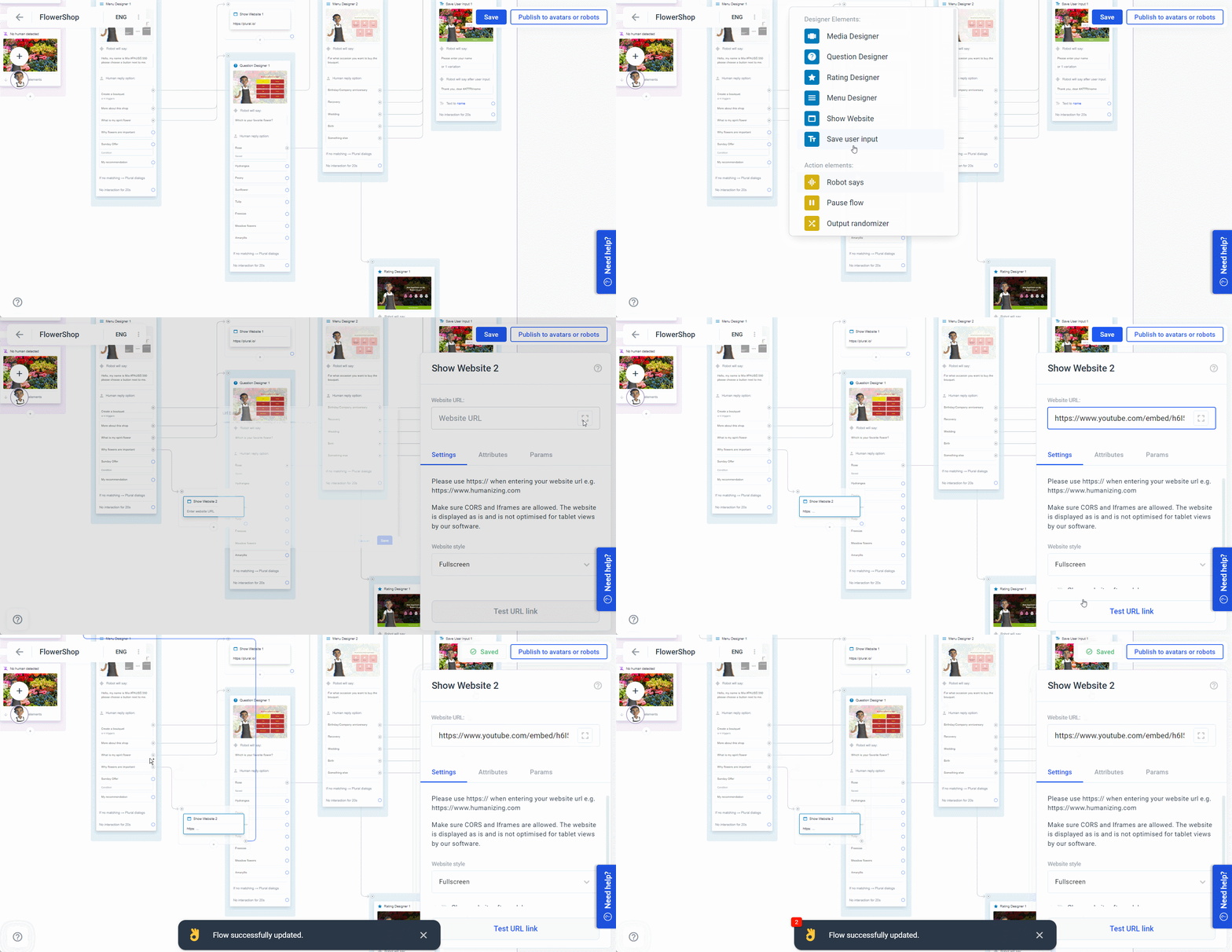
- In your project, add the Show Website Element by dragging and dropping the output of the previous element. Select “Show Website” from the menu that appears when you drop the output.
- In the sidebar, enter the YouTube embed link you copied earlier in the input field.
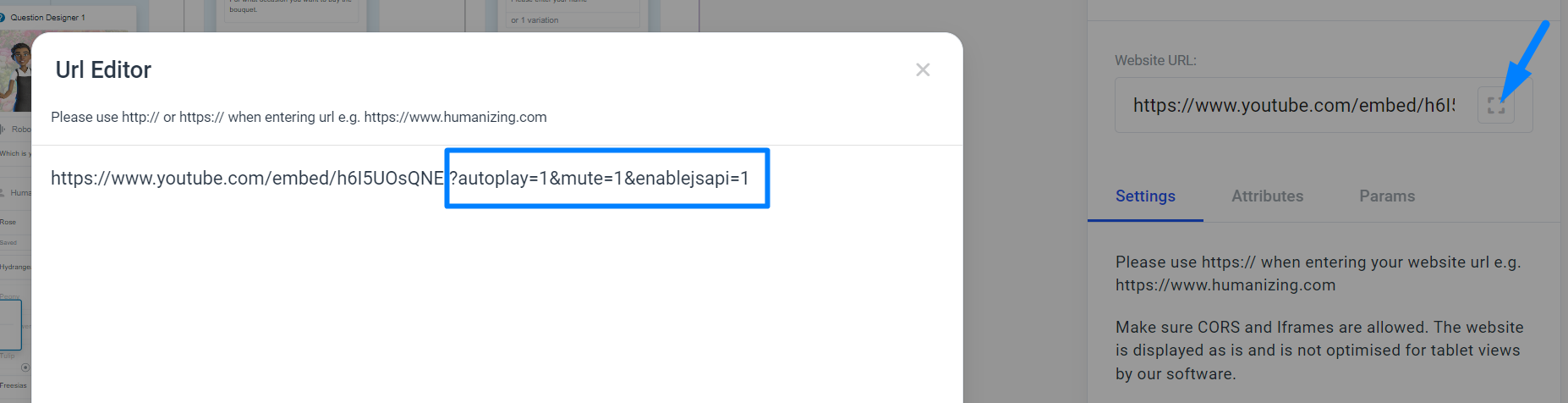
- Complete the remaining steps in the Show Website Element to configure the appearance and functionality of the embedded video.